For makers who sell what they build

Price what you make.
Know what you keep.

Goat PPC turns your materials, labor and extras into a price you can defend — five ways at once — and keeps the inventory, sales, paperwork and history behind every price in one app for Mac and iPad.

Mac and iPad · one app, one purchase Works offline, syncs through iCloud No accounts, no tracking
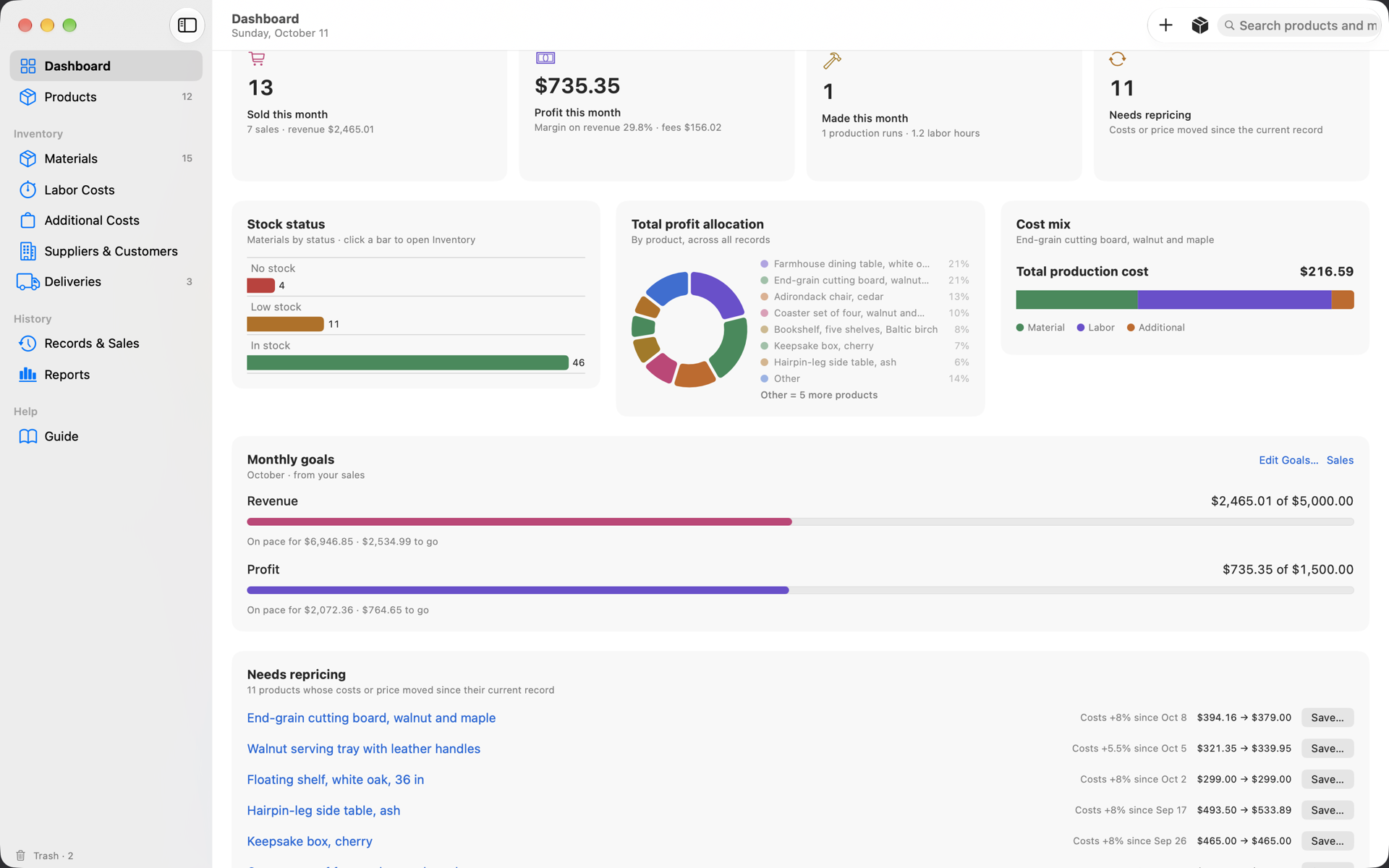
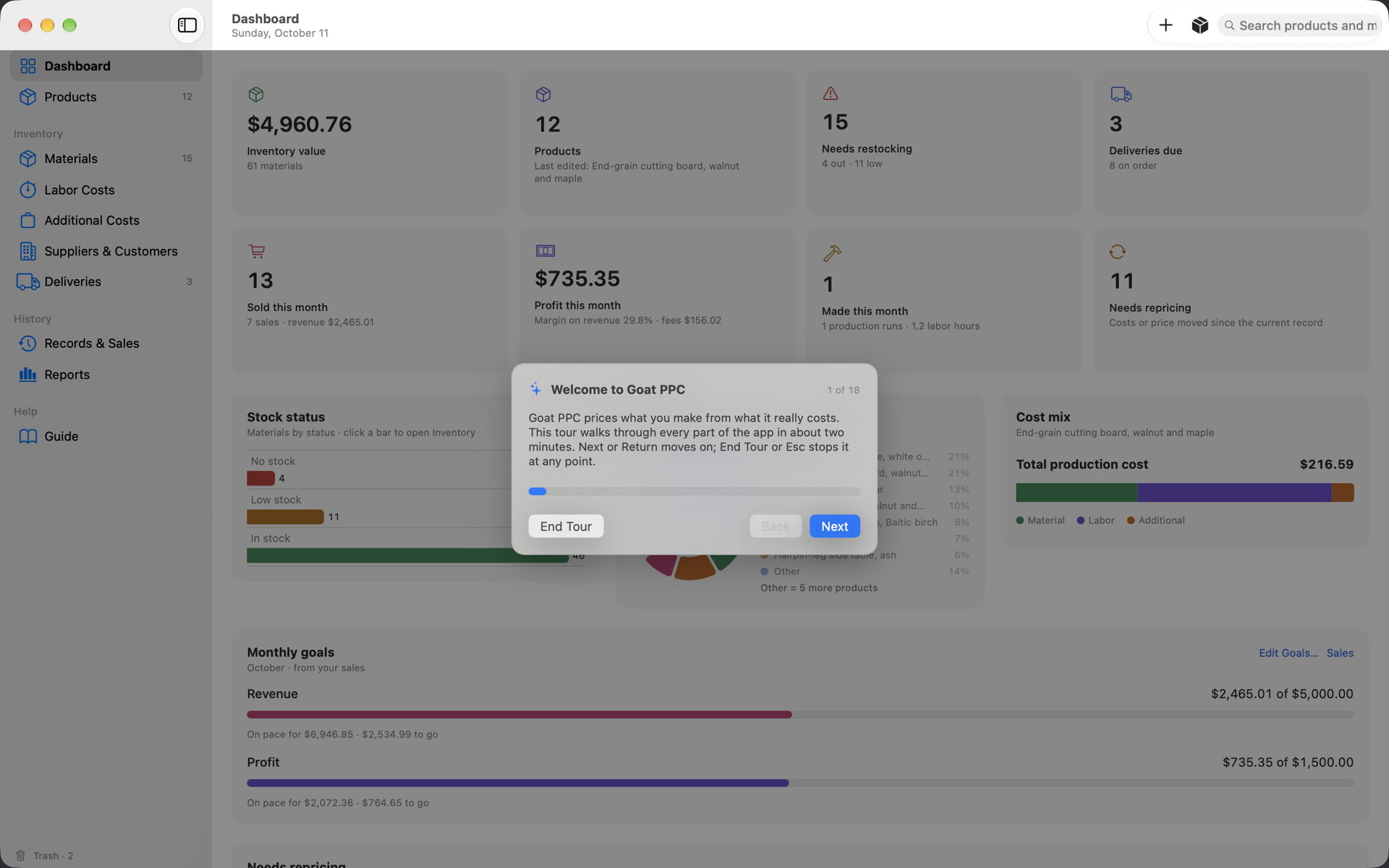
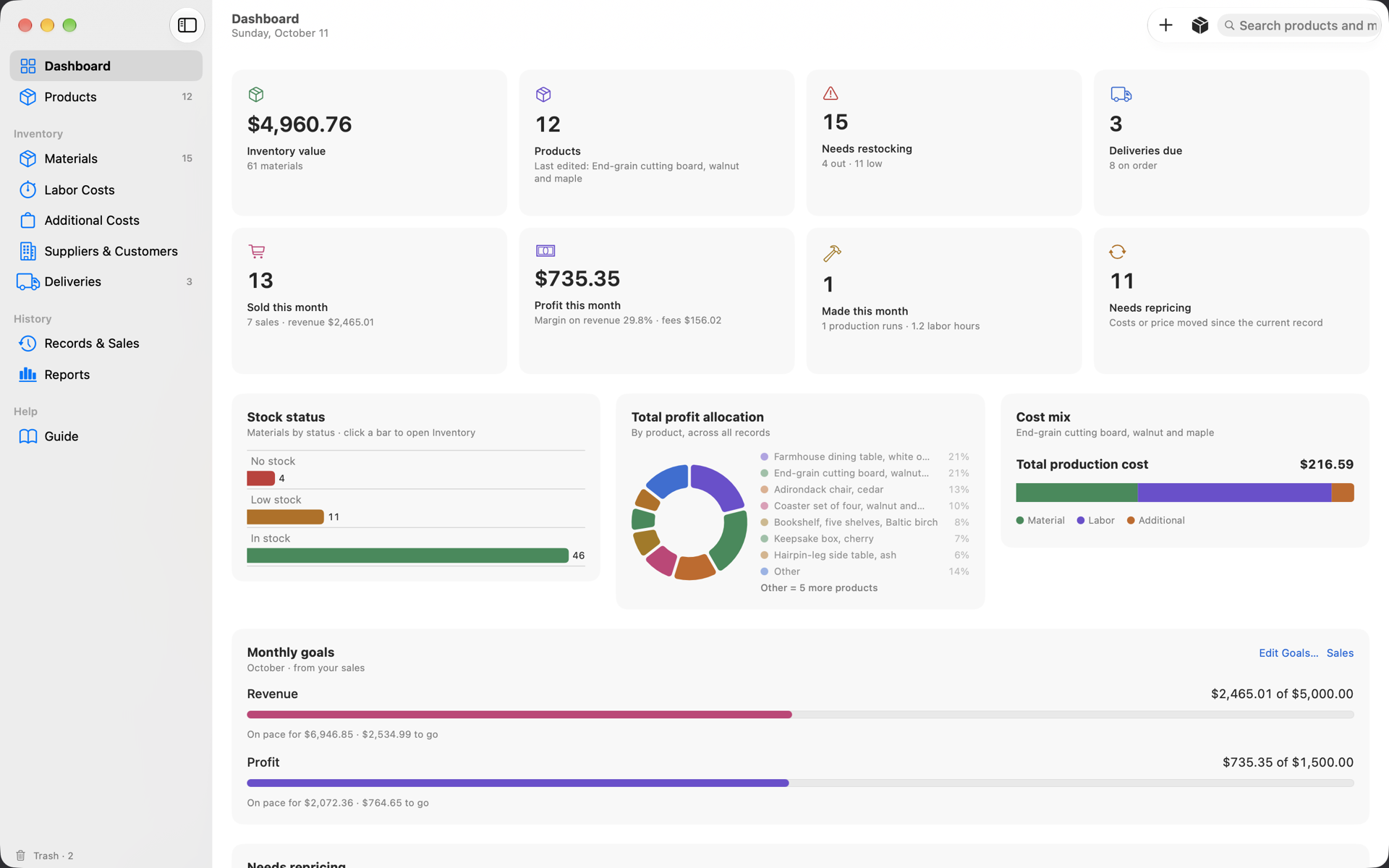
The Goat PPC Dashboard: inventory value, products, restocking and deliveries tiles, this month's sales and profit, stock status bars, a profit allocation doughnut, cost mix and monthly goals.

The Dashboard, showing the sample woodworking shop that ships with the app.

What it does

A cost sheet, five prices, and everything that follows from them.

The spreadsheet most makers price with, rebuilt as a real app — same arithmetic, plus the inventory, sales, reports and documents the spreadsheet never had. Here is the whole of it, and how each part works.

▦Cost sheets

A product is a cost sheet plus pricing settings. Costs come in three tables: materials, labor and additional items.

  • Materials come from your inventory at their current unit cost; type a name that does not exist and it is created on the spot.
  • Buy in one unit, use in another: kilograms to grams, board feet to inches — units of a family convert exactly, and lumber lines get a board-foot calculator.
  • Labor is minutes at an hourly rate; a play button times an operation and adds the elapsed minutes.
  • Waste per line (lumber loses 15–30 %), batch yield when one sheet makes several units, overhead per labor hour or as a percentage.
  • Freeze a unit cost on one line (the lock) while the rest of the sheet follows your inventory.
5Five pricing strategies

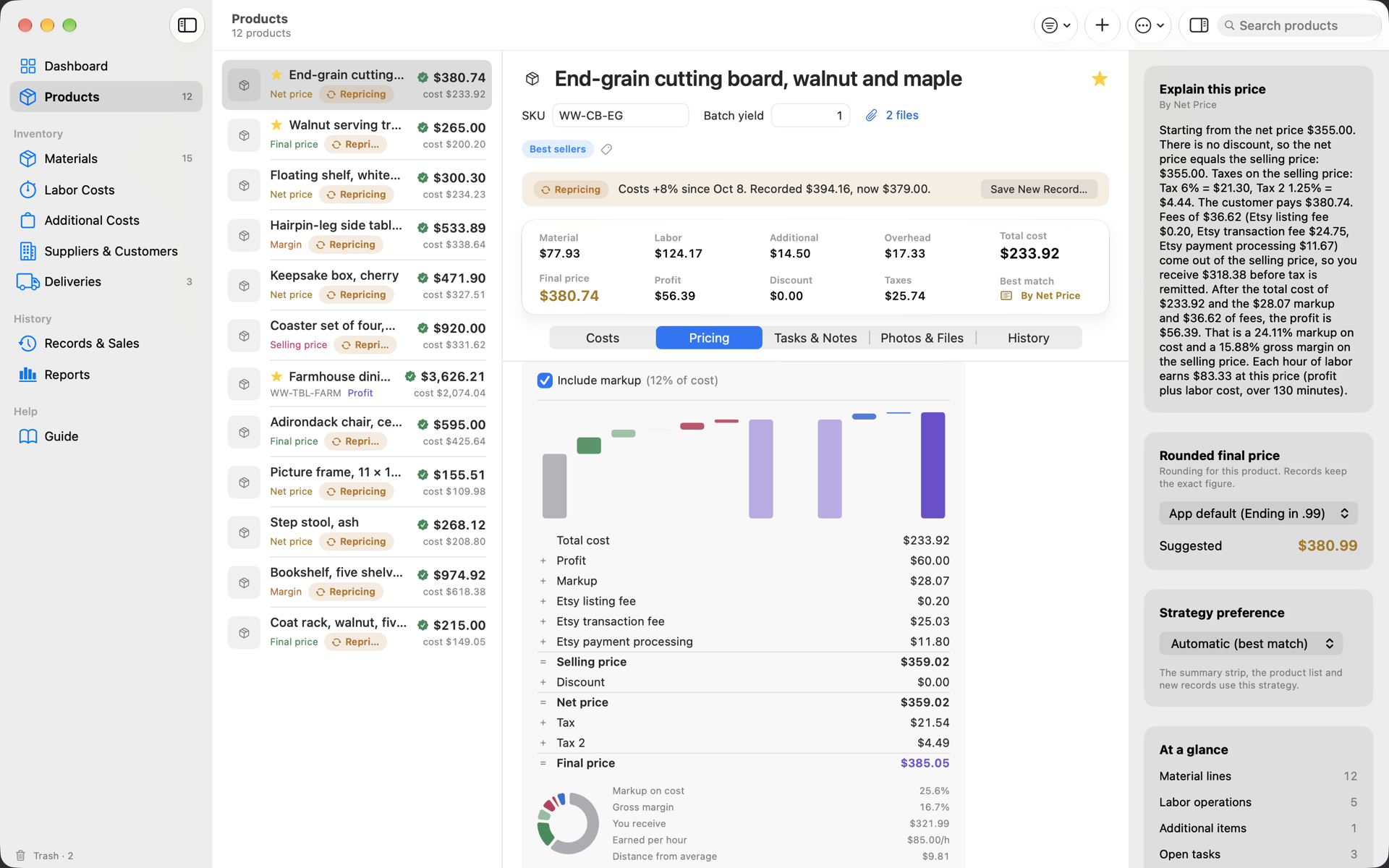
Each card starts from the number you care about and derives the rest. All five share one cost, discount, taxes and markup.

  • By Profit — the profit you want per sale.
  • By Profit Margin — a percentage of cost, or of the selling price for a true gross margin.
  • By Final Price — the sticker price including tax, worked backwards to the profit.
  • By Net Price — the list price before tax.
  • By Selling Price — what you keep before tax.
  • A sixth card averages the five; the closest one gets the Best match badge. Pin a preferred strategy or let the app follow the best match. ⌥⌘T shows all five as one table.

%Fees, channels and taxes

Marketplace and processing fees are grossed up into the price so they never eat your profit.

  • Presets for Etsy (listing, transaction, payment processing and Offsite Ads), Shopify Payments, Square, PayPal, Amazon Handmade, Faire and consignment, plus your own — a percentage of the final, net or selling price and a fixed amount per sale.
  • Every card shows what you receive after fees and what each hour of labor earns, and the average card prints a break-even price.
  • Sales channels bundle a discount, fees and a tax rule: price one product for Etsy, wholesale (keystone), consignment, the craft fair and the shop counter at once, side by side.
  • A channel can carry its own tax rates — a fair in another state, a marketplace that collects the tax itself — and the Pricing tab and every record show what was charged there.
  • Any number of taxes, compound if needed, on the net price or the selling price; a rounding suggestion (.99, .95, nearest 0.50) that records can adopt.

⟳Repricing

When costs move, you hear about it instead of finding out at the till.

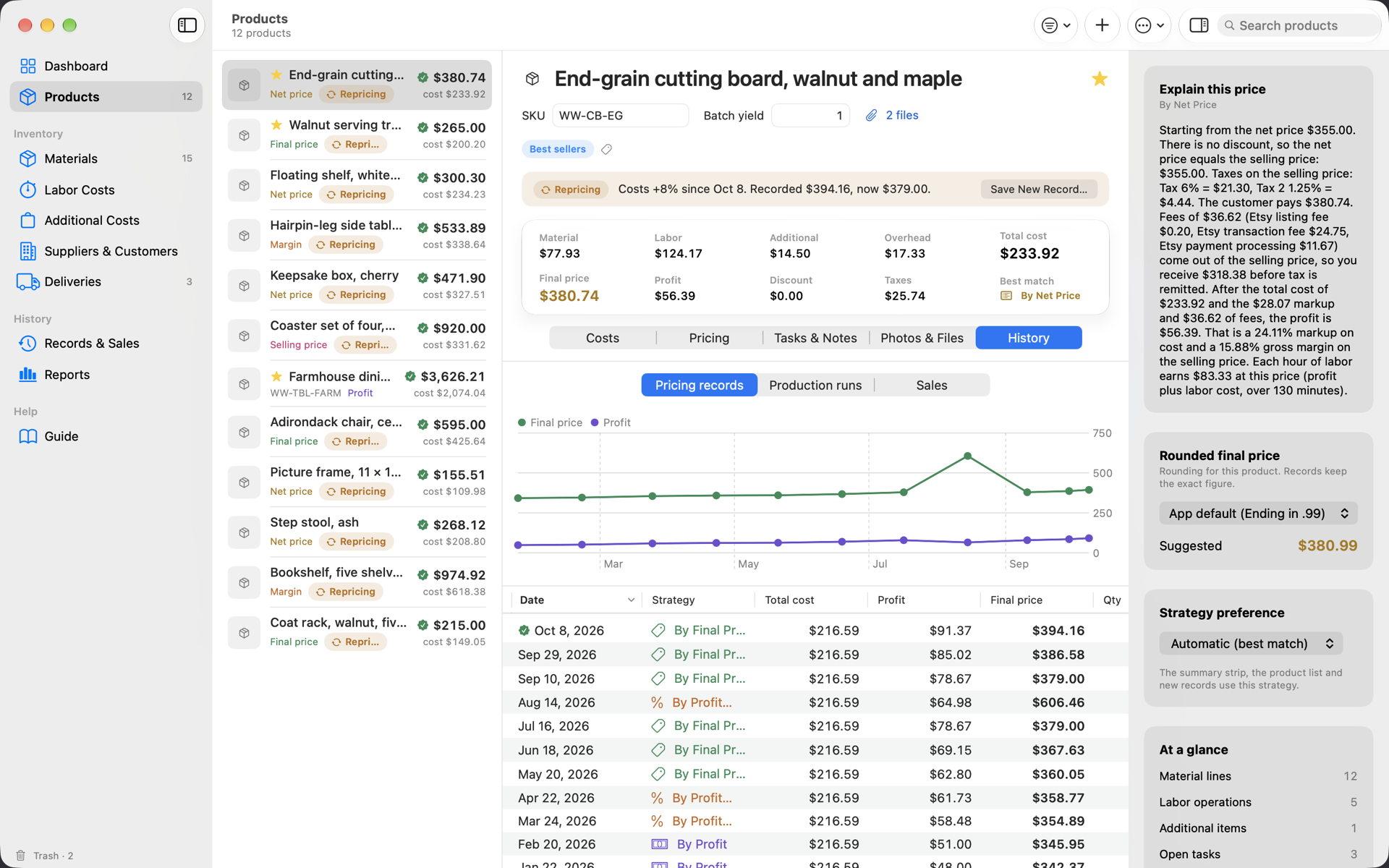
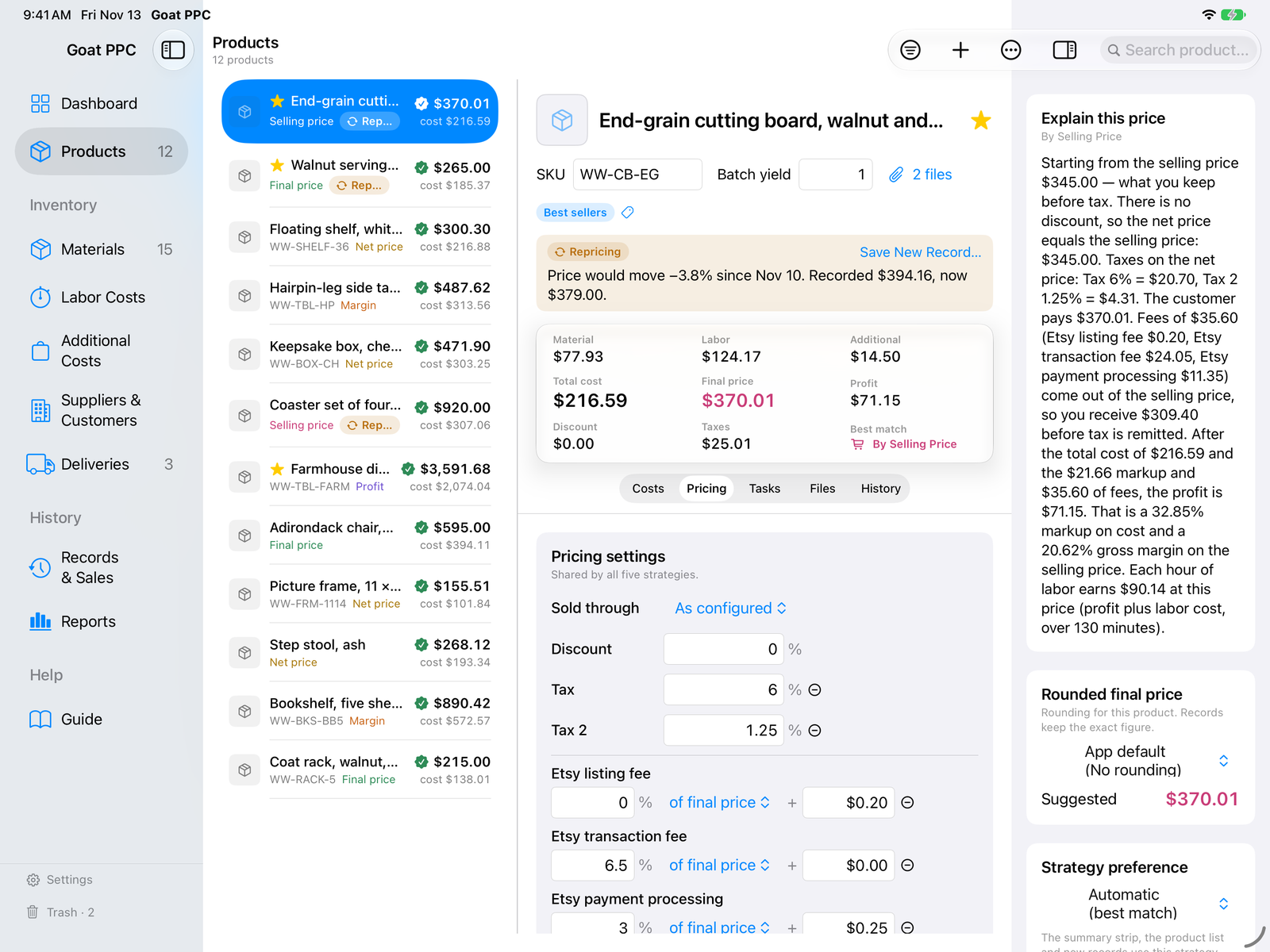
  • Every product with a current price record is compared, live, with what its strategy prices to today. Past the threshold (2 % by default) it gets a Repricing badge and a banner.
  • The Dashboard lists them with the recorded and the new price — Save one, or Save Records for All.
  • Change a material's price and the app lists every product that uses it, with the cost change per batch and what the price should be now.

▤Inventory and the stock ledger

What you buy, what it costs per unit, what is on the shelf, and why the shelf says what it says.

  • Enter what you paid and how many you got; the unit cost, stock status (In stock, Low stock, No stock) and total inventory value follow.
  • Every stock change is a dated ledger line with a reason: deliveries received (with the cost before and after), production runs and reversals, adjustments, stock counts, imports, price edits — and a Cost over time chart per material.
  • Buy in another currency: a material keeps its purchase currency and the exchange rate you paid; cost sheets stay in your shop currency.
  • Tags, archiving, column choice, bulk edits for several materials, and a Stock Count sheet that writes one line per difference.
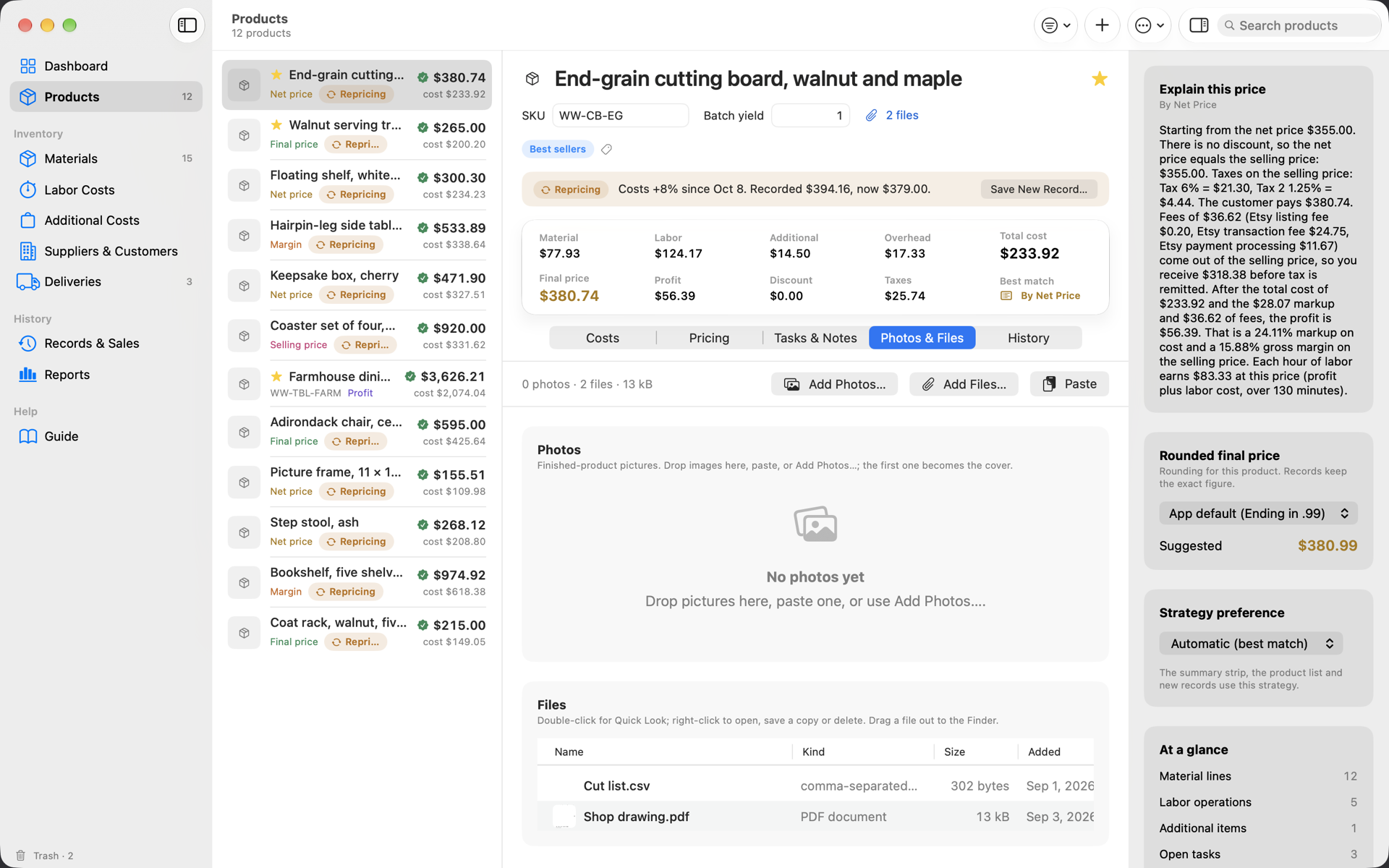
  • A picture for every material and product, straight from the camera — the Mac's own, an iPhone over Continuity Camera, the iPad's — or from Photos, a file, a paste or a drop.

⇥Orders, deliveries, shopping list

From “we are low on walnut” to “it arrived” without a notebook.

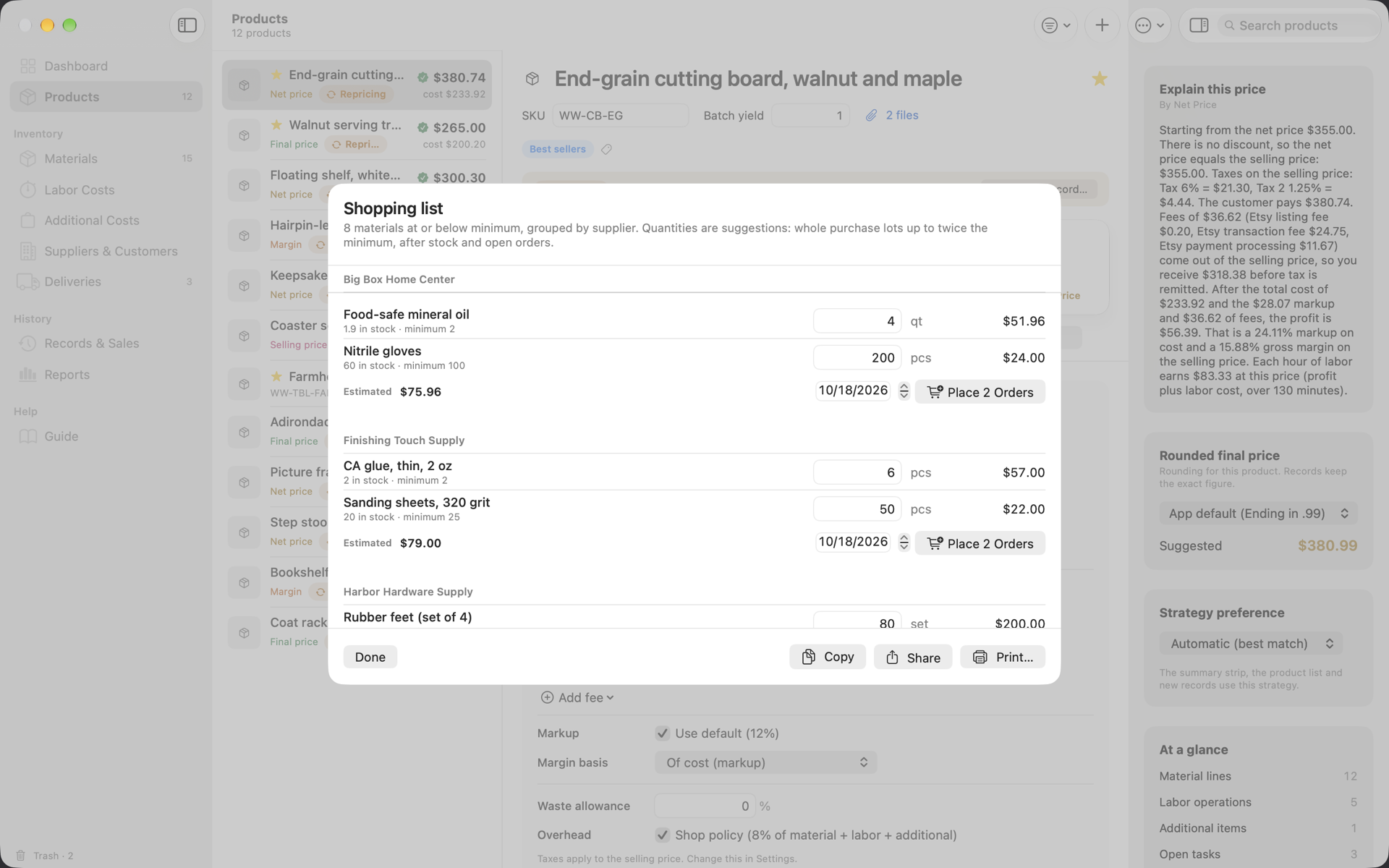
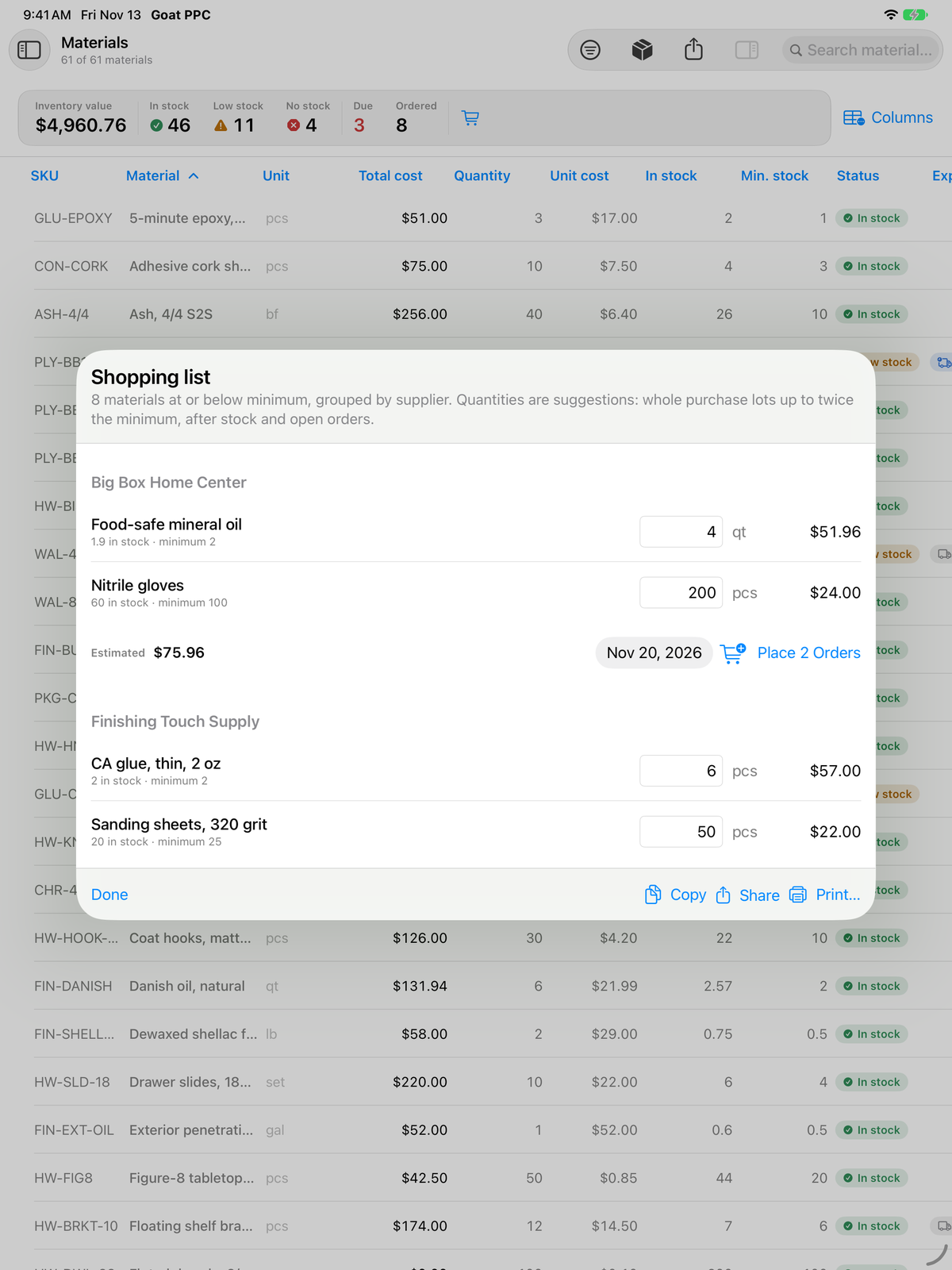
  • The shopping list groups everything at or below its minimum by supplier with suggested quantities and a cost estimate; one click places the orders.
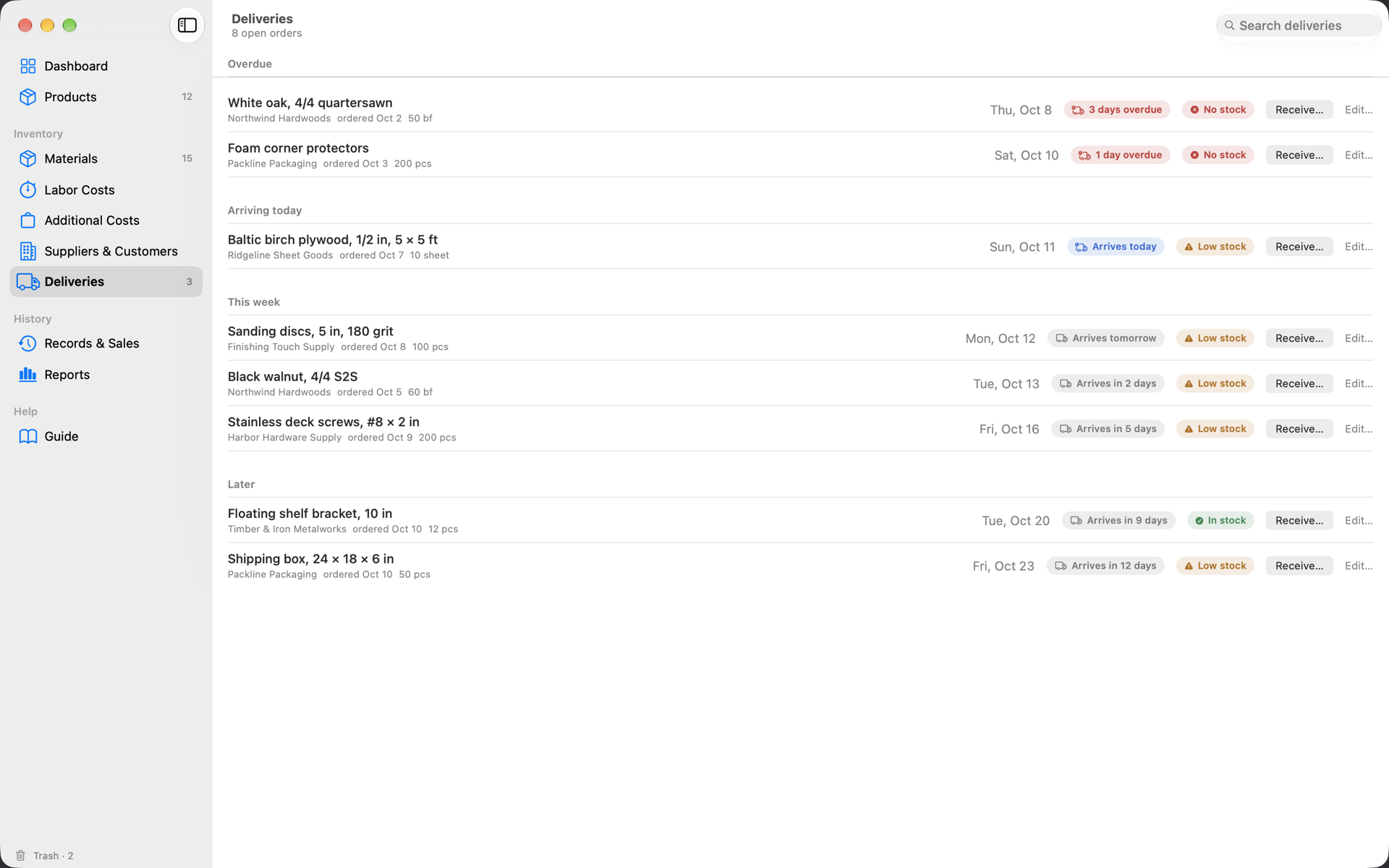
  • Deliveries groups open orders into Overdue, Arriving today, This week and Later; Receive adds the quantity to stock and can update the price, and when only part of an order arrives the rest stays on order with a new date.
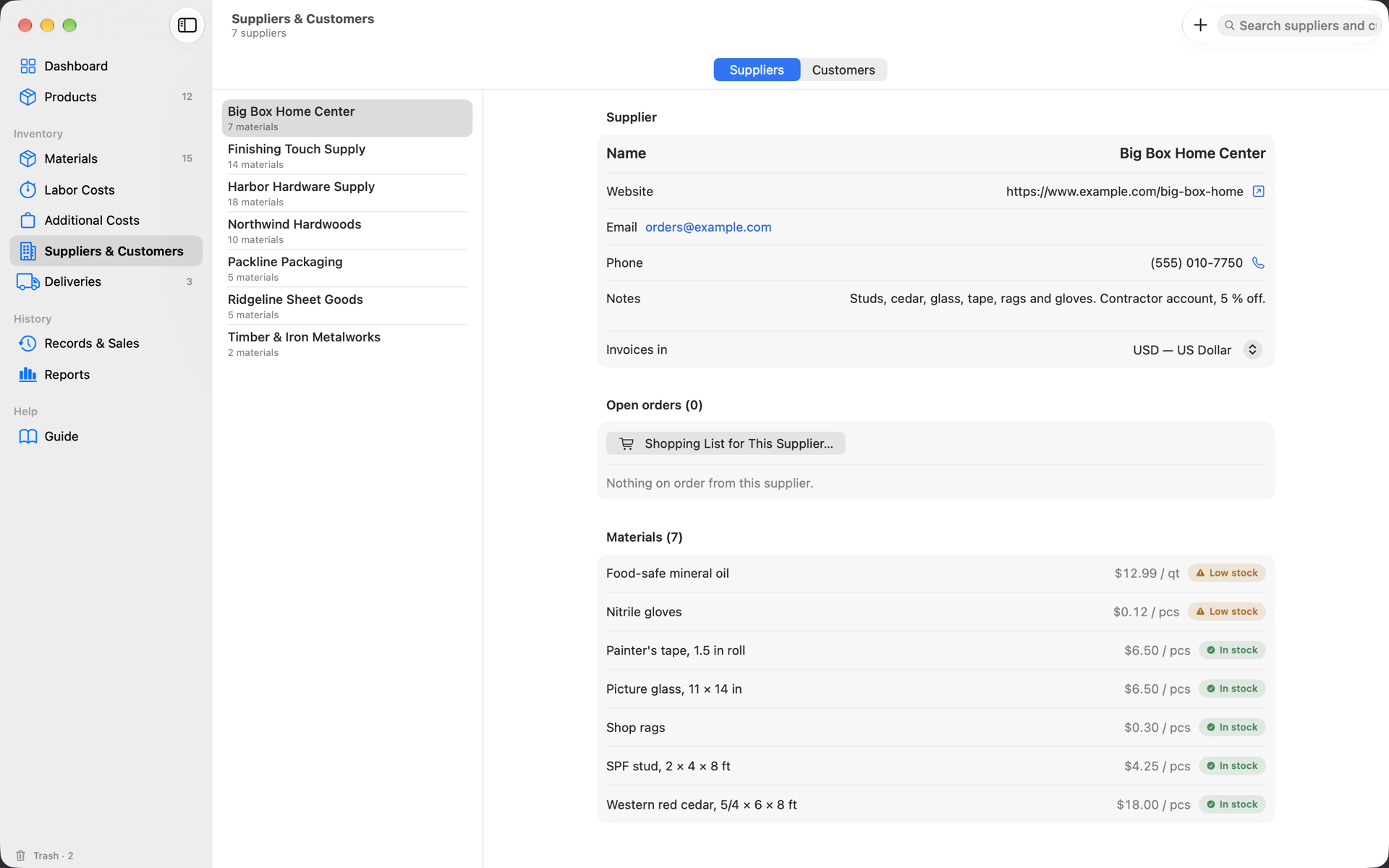
  • Suppliers keep contact details, their materials and open orders; a delivery can go to the Reminders app.

⌚Labor and extras catalogs

Your operations and extra items, picked into cost sheets the way materials are.

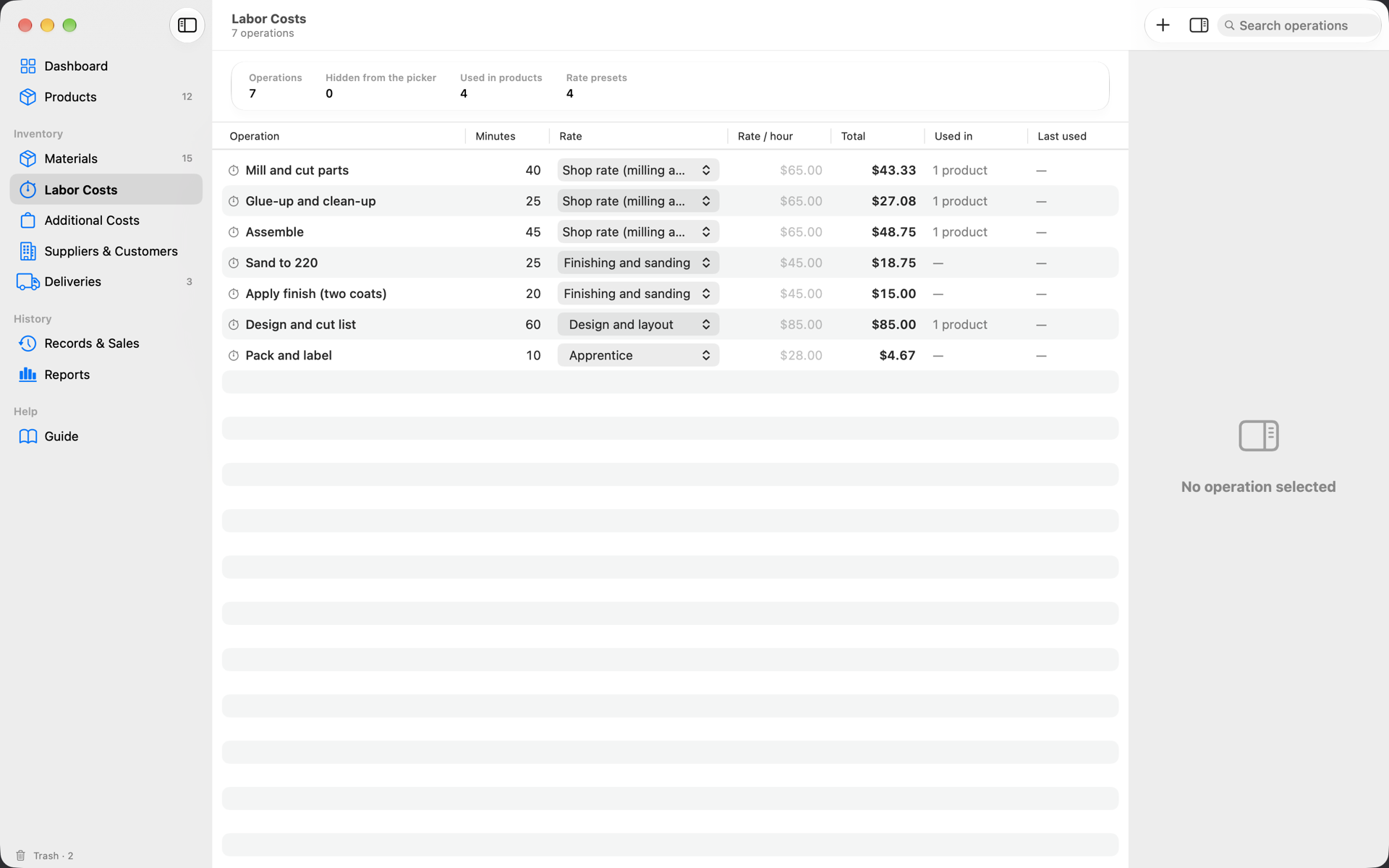
  • Labor Costs lists operations — Mill and cut parts, Sand to 220, Pack and label — with typical minutes and a rate from your presets; a rate calculator turns an income goal and billable hours into the rate to charge.
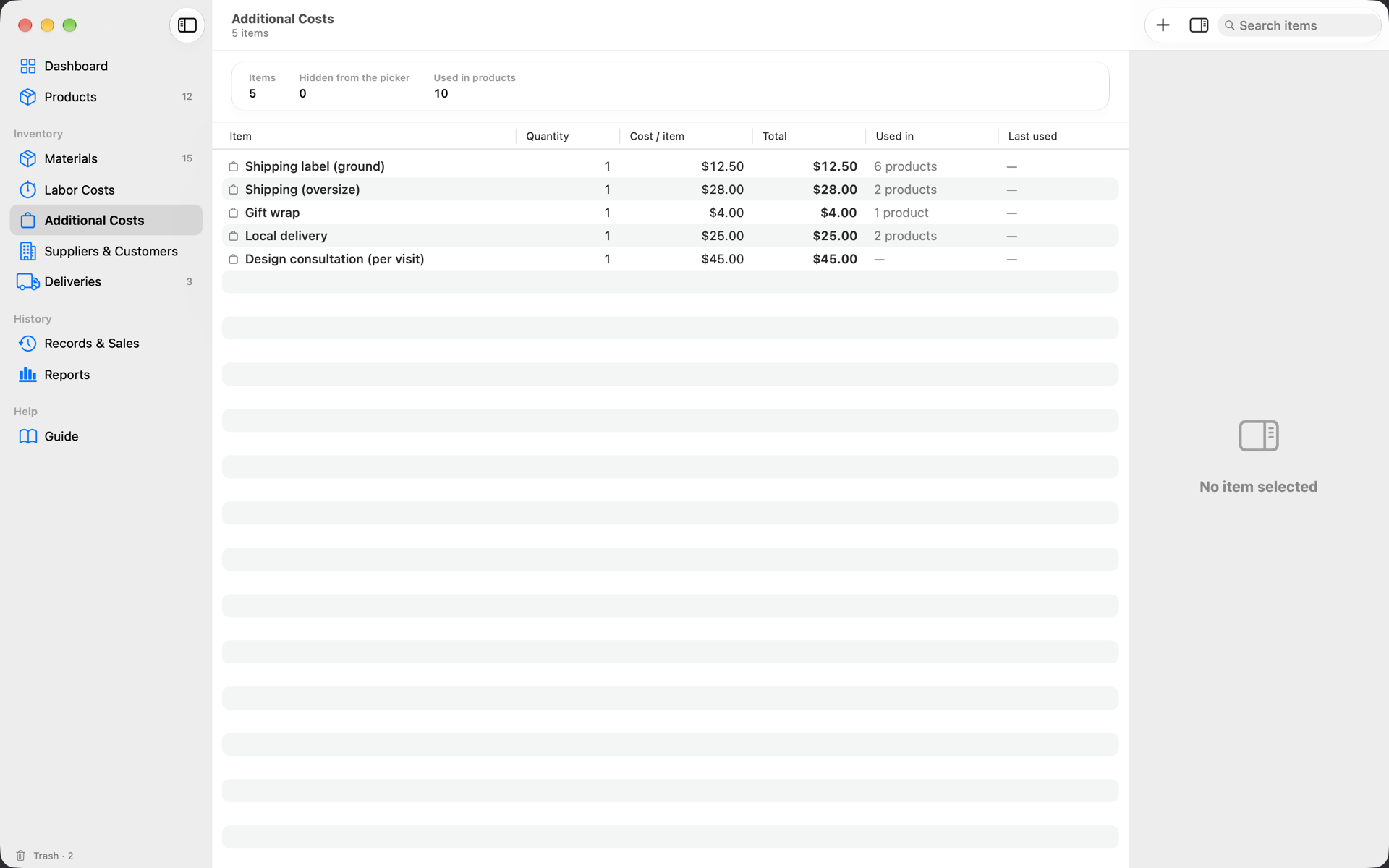
  • Additional Costs lists extras — gift wrap, shipping label, local delivery — with a quantity and a cost.
  • A line keeps its own numbers after picking, so editing a product never changes the catalog; Save as Template turns a line into a catalog entry.
🔨Production runs

Record what you made and the materials come off the shelf, waste included.

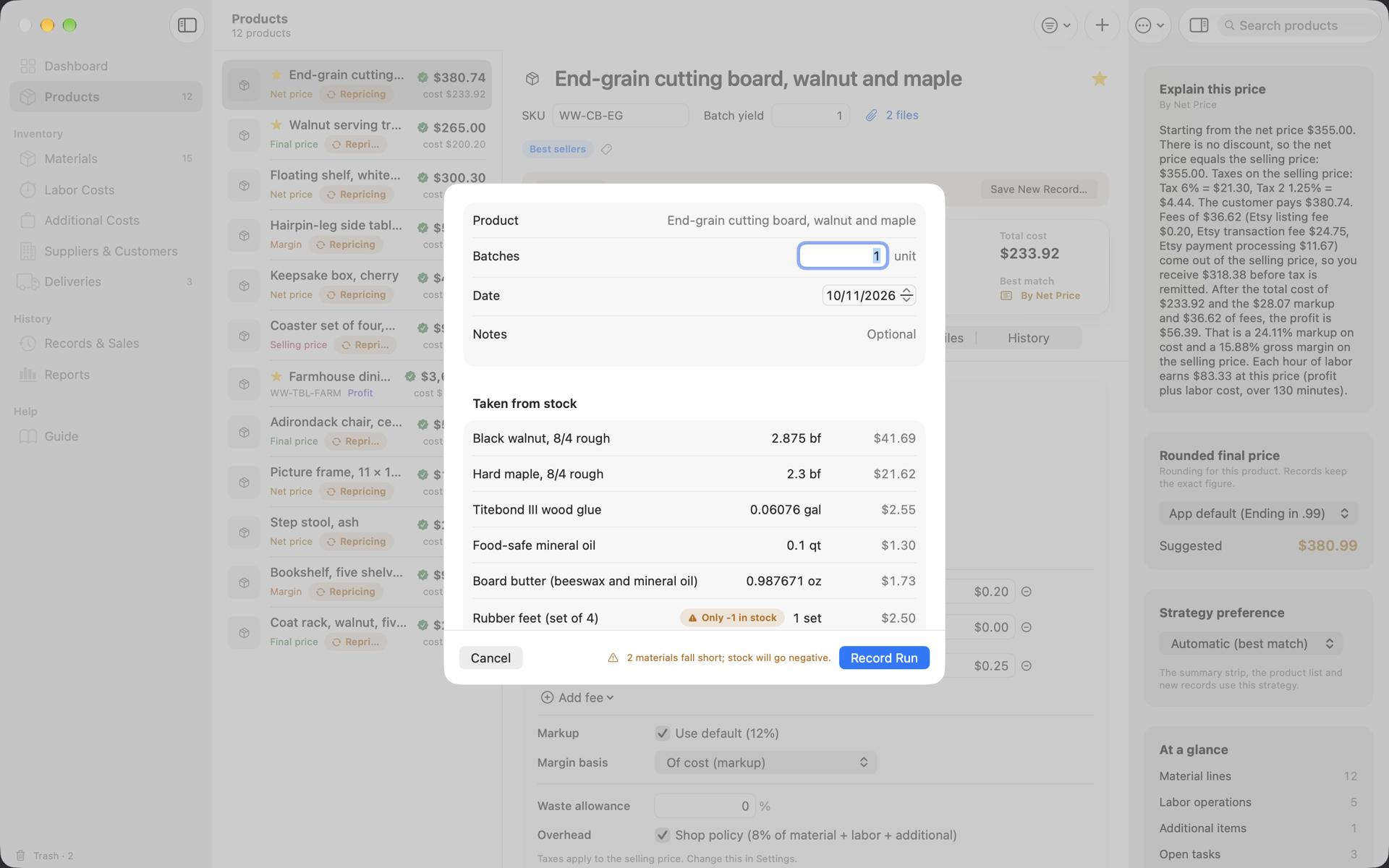
  • Enter the batches made; the sheet lists what the run takes from each material and flags what falls short.
  • Runs are frozen snapshots and can be reversed; the Dashboard counts units made this month.

▣Pricing records

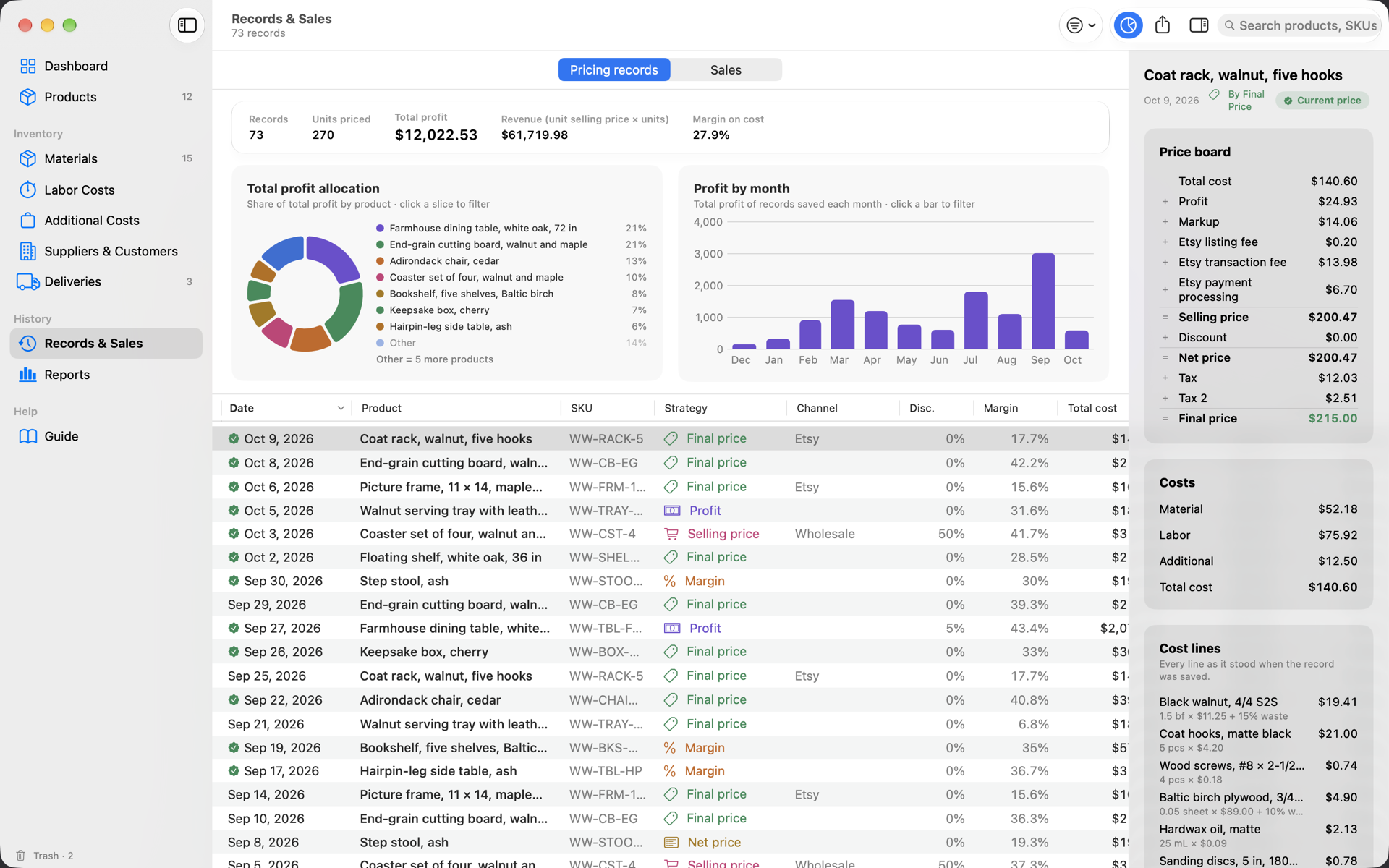
A record freezes a product's price at a date — every cost line, the strategy, discount, taxes, final price and quantity.
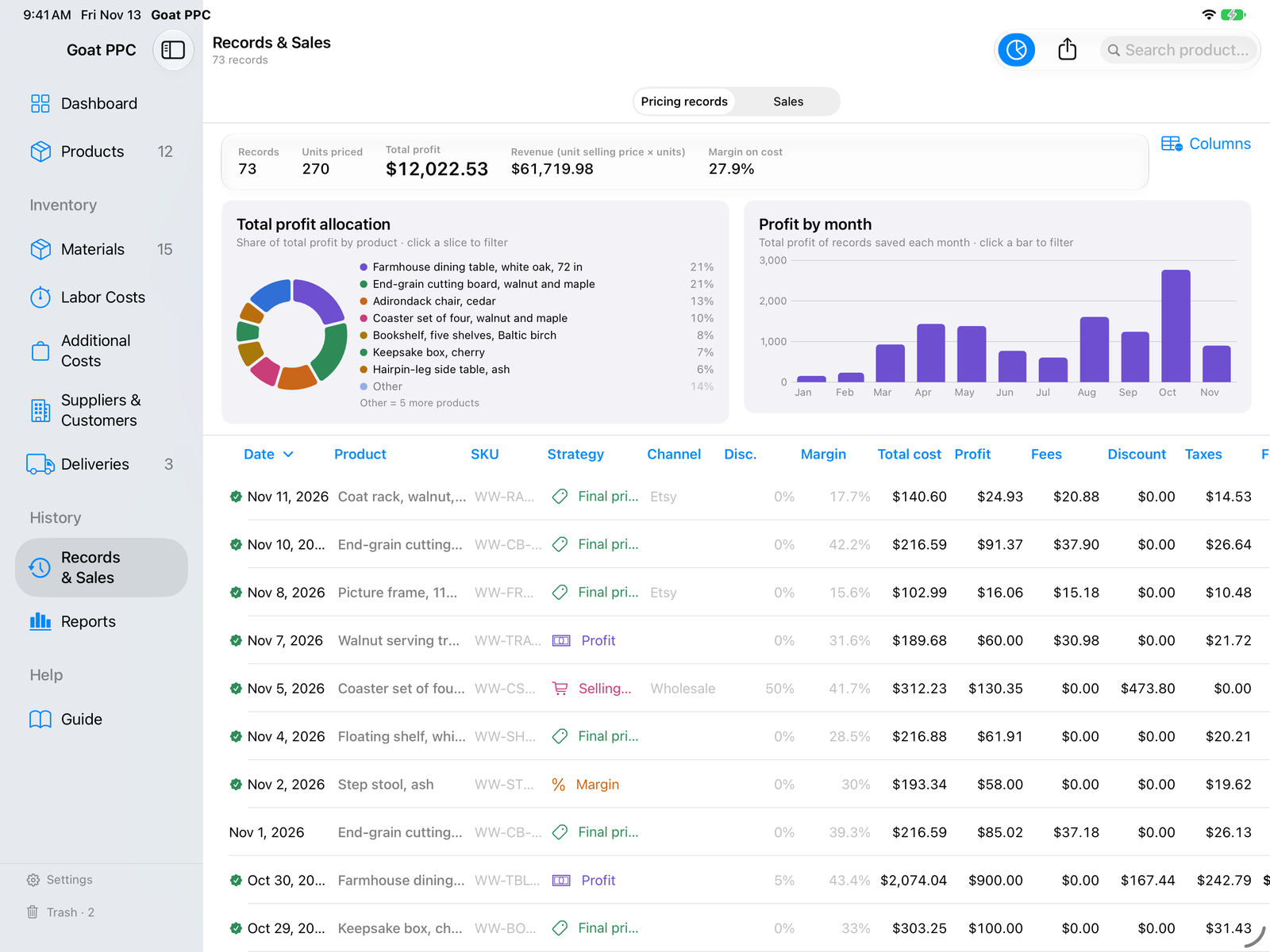
  • Filter by period, strategy and channel; group by product, month, strategy or channel; click a slice or a bar in the charts to filter.
  • Load into Product restores a record's settings, targets and even its cost lines.
  • Quotes: a customer-ready PDF from any record with validity, deposit, terms and optional itemised lines; Mark as Sold turns it into a sale.

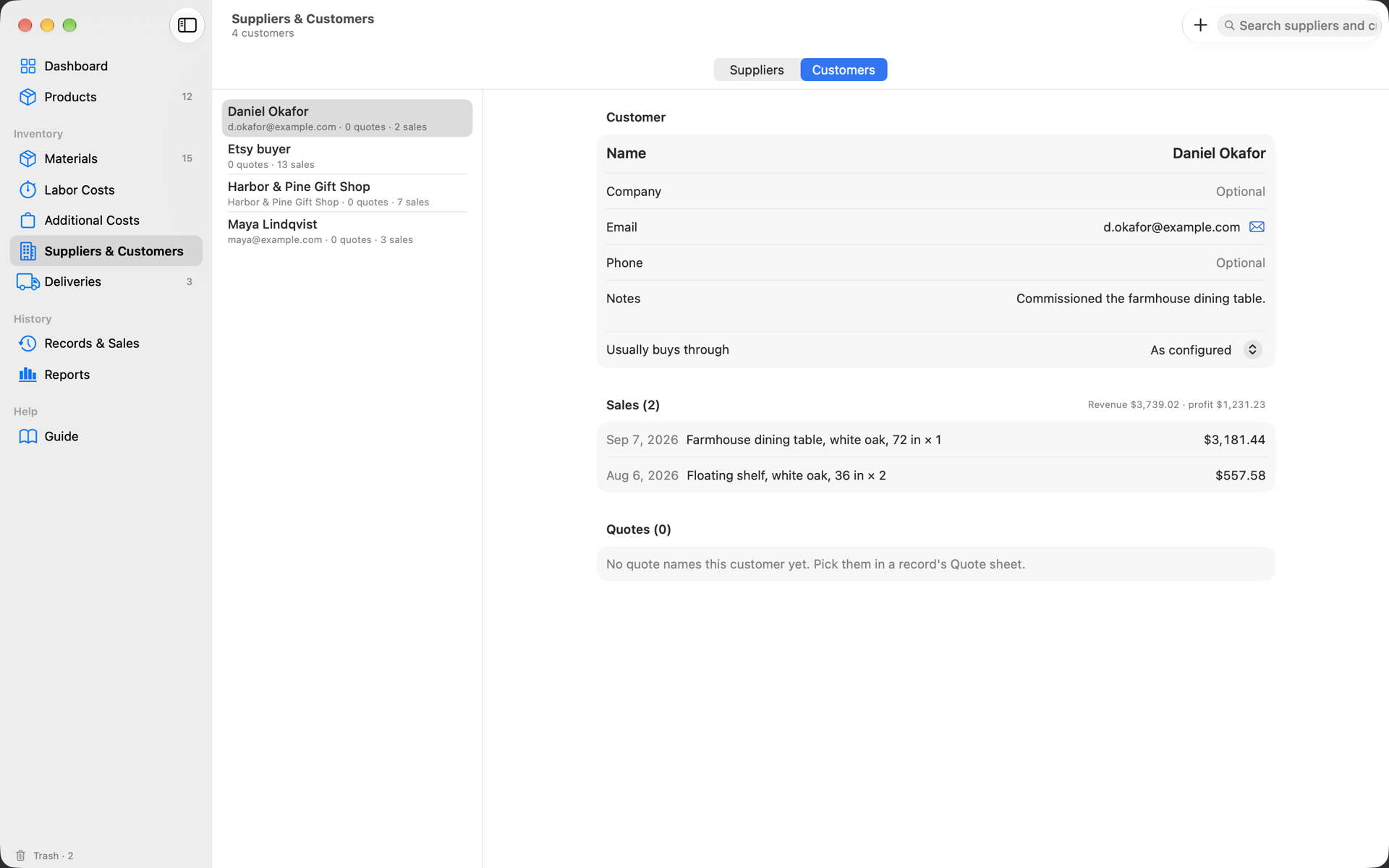
$Sales and customers

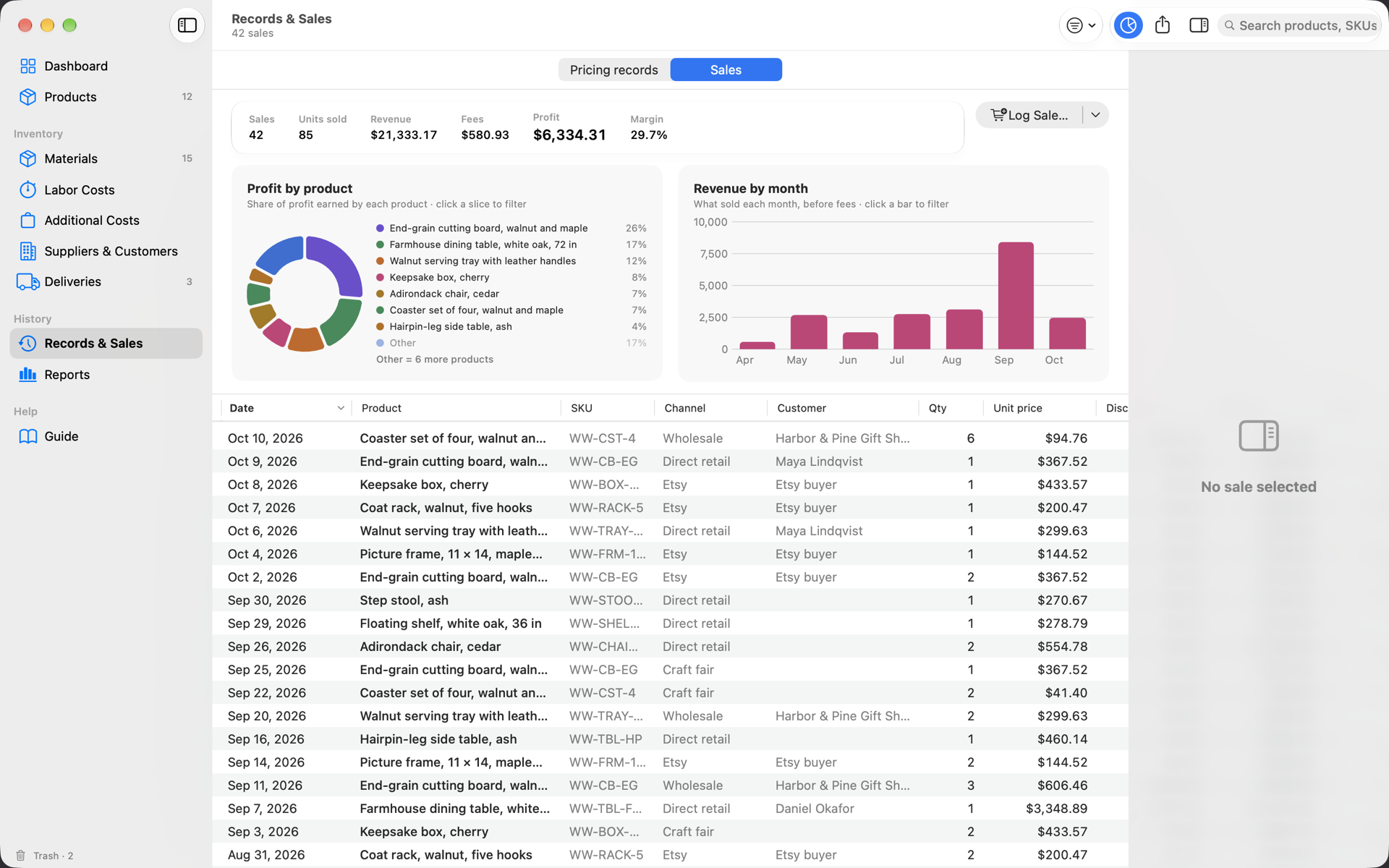
What actually sold: units, what the buyer paid, the fees the marketplace took, taxes collected and the profit that was left.

  • Log a sale from a product, a record, a quote, the Dashboard or Open Quickly; the money starts from the active price and follows the quantity and channel.
  • Import Etsy's Sold Order Items and Sold Orders downloads, Shopify's Orders export or Goat PPC's own CSV through a preview; order-level discounts and taxes are spread over items, and importing a file twice adds nothing.
  • Customers keep contact details, their usual channel, and every quote and sale linked to them.

▥Reports and Dashboard

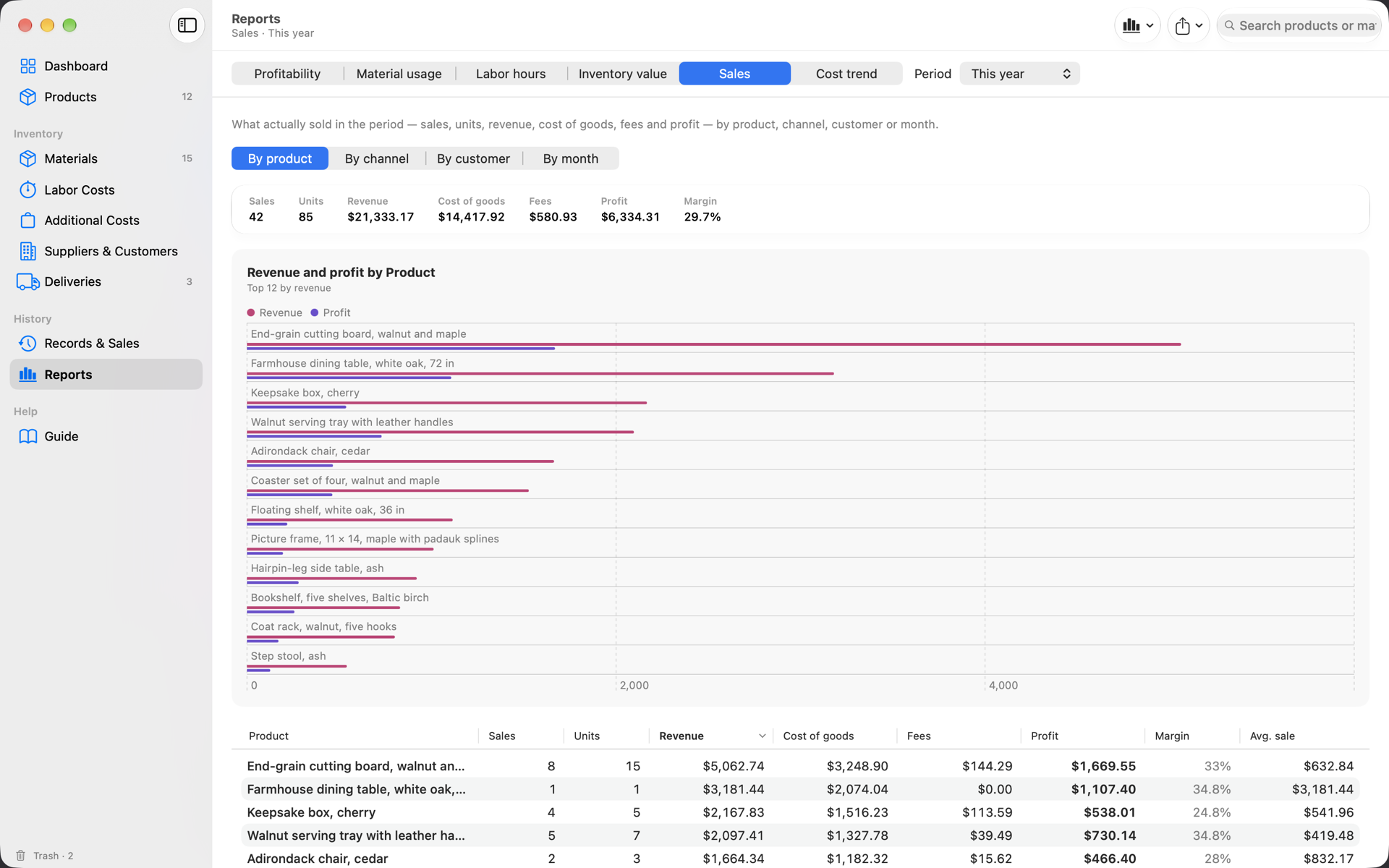
Six reports over any period, each with a chart, a sortable table, CSV, PDF, share and print.

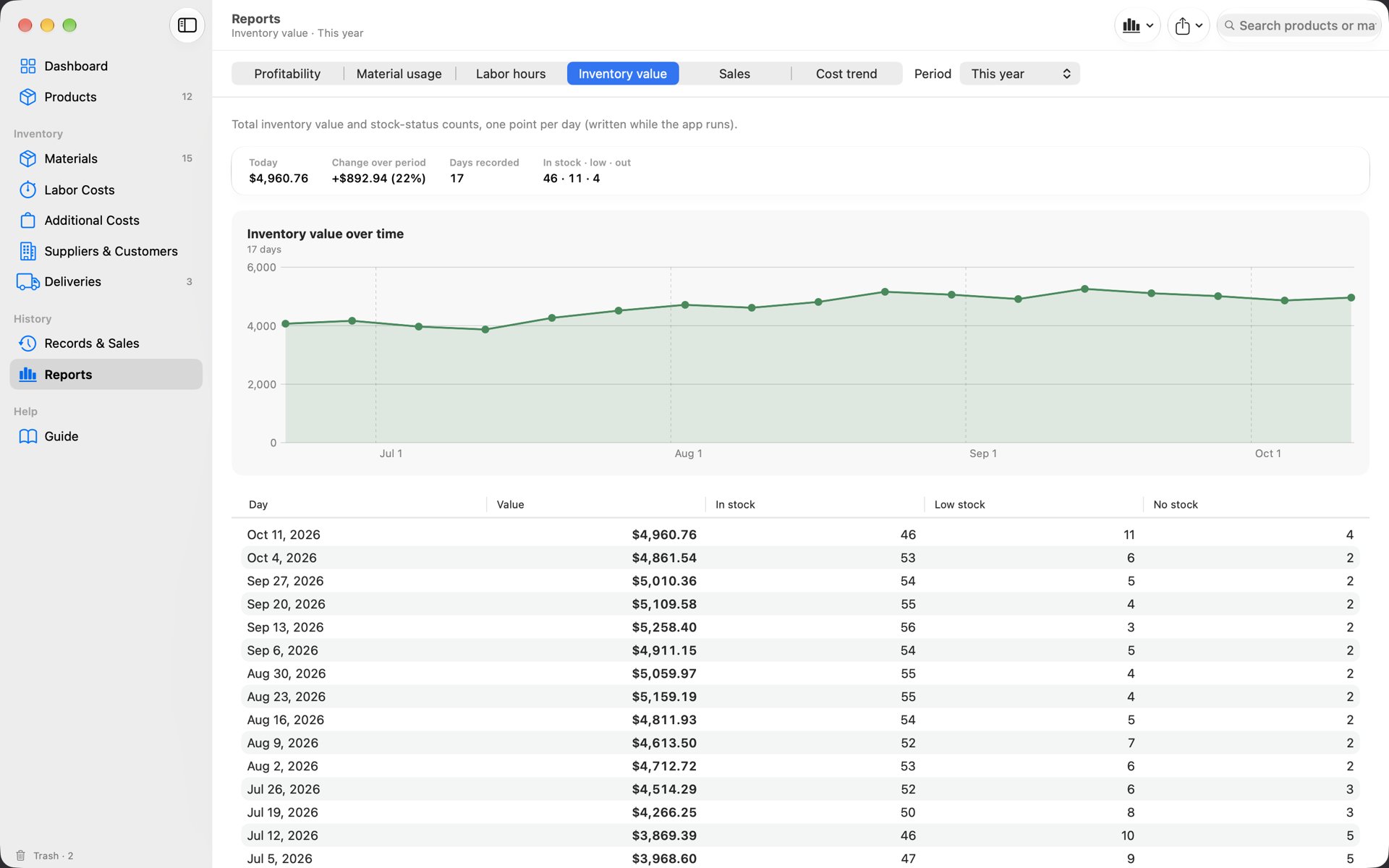
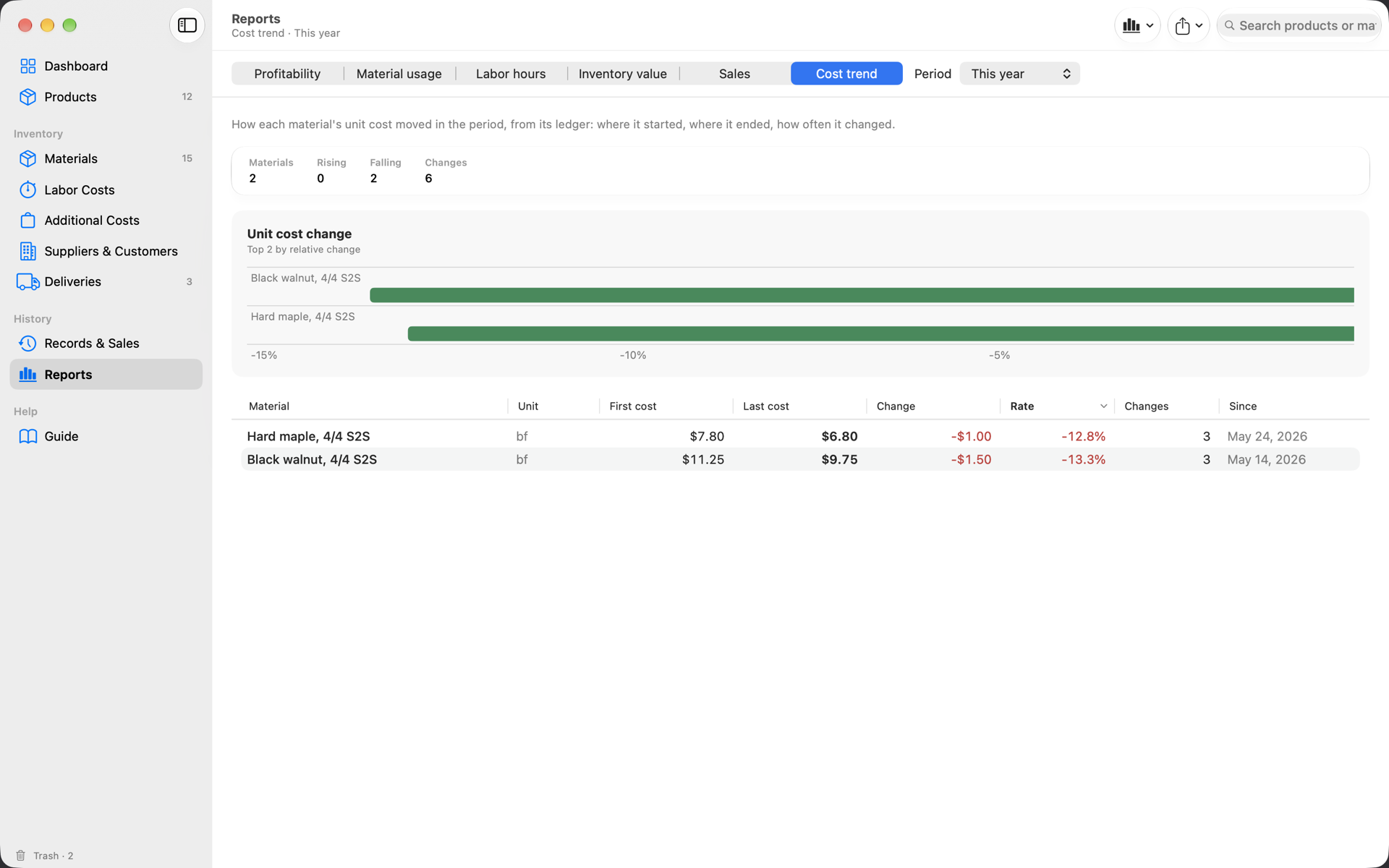
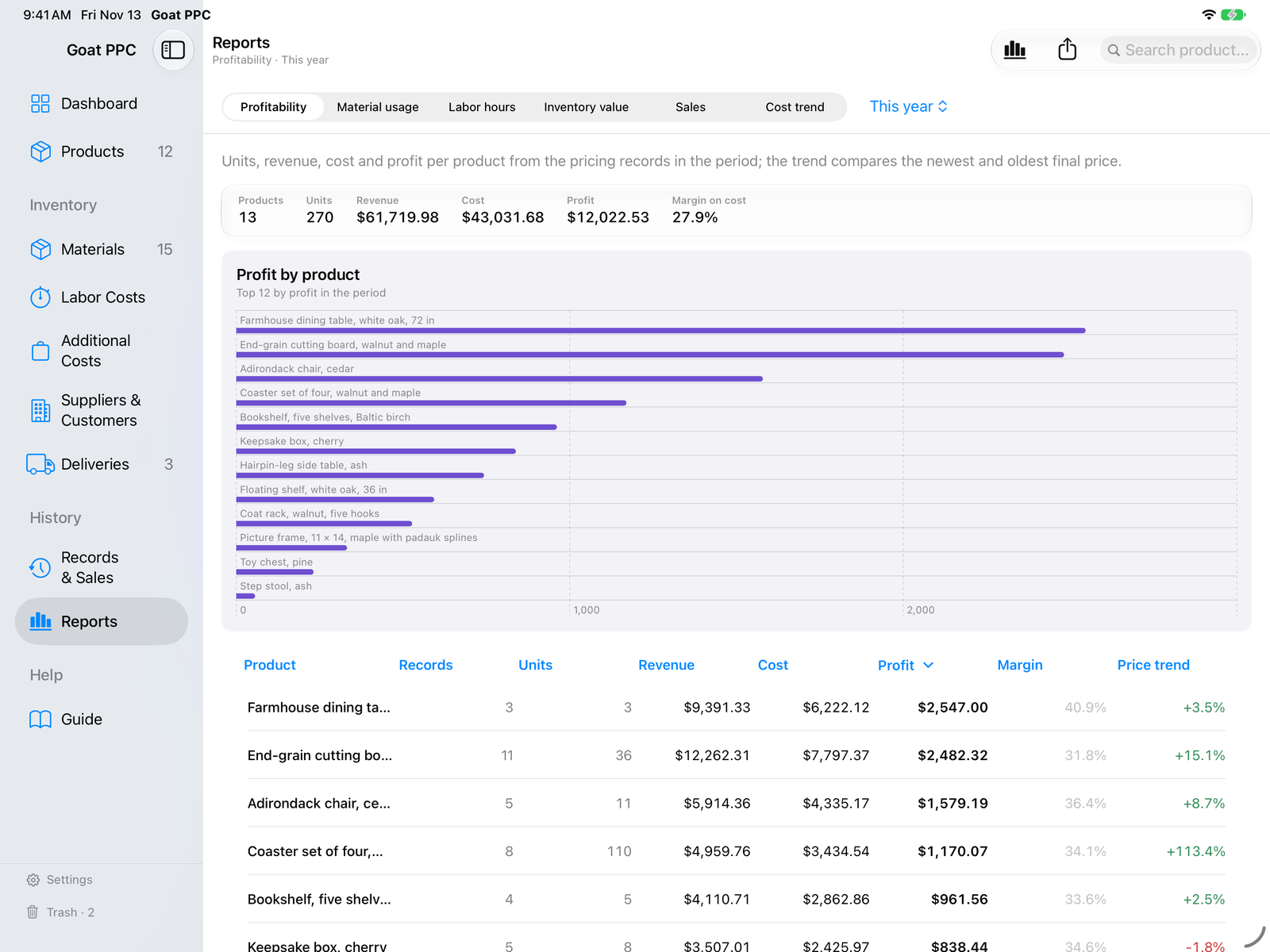
  • Profitability by product, material usage (priced versus actually consumed), labor hours, inventory value over time, sales by product, channel, customer or month, and cost trend from the ledger.
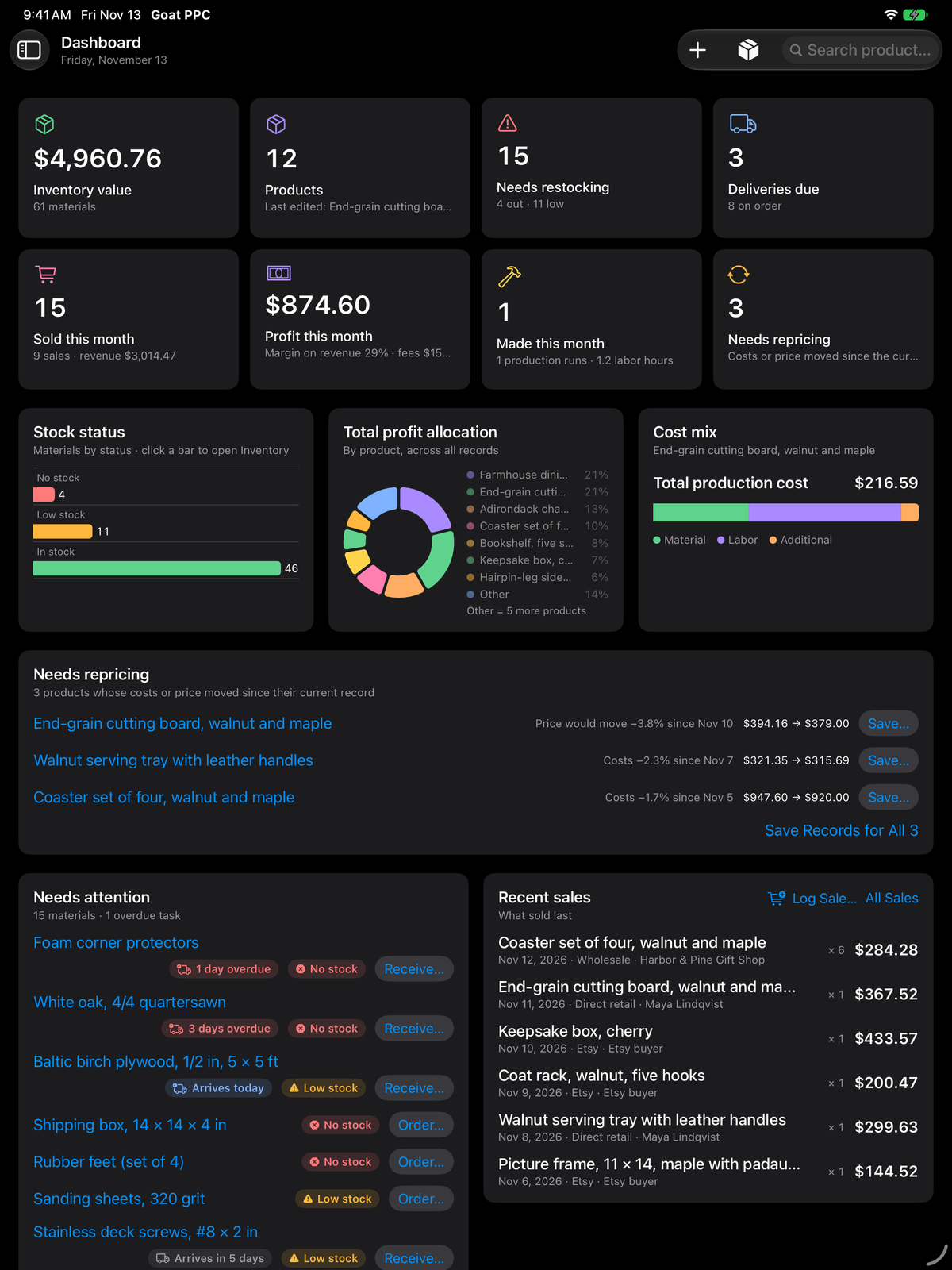
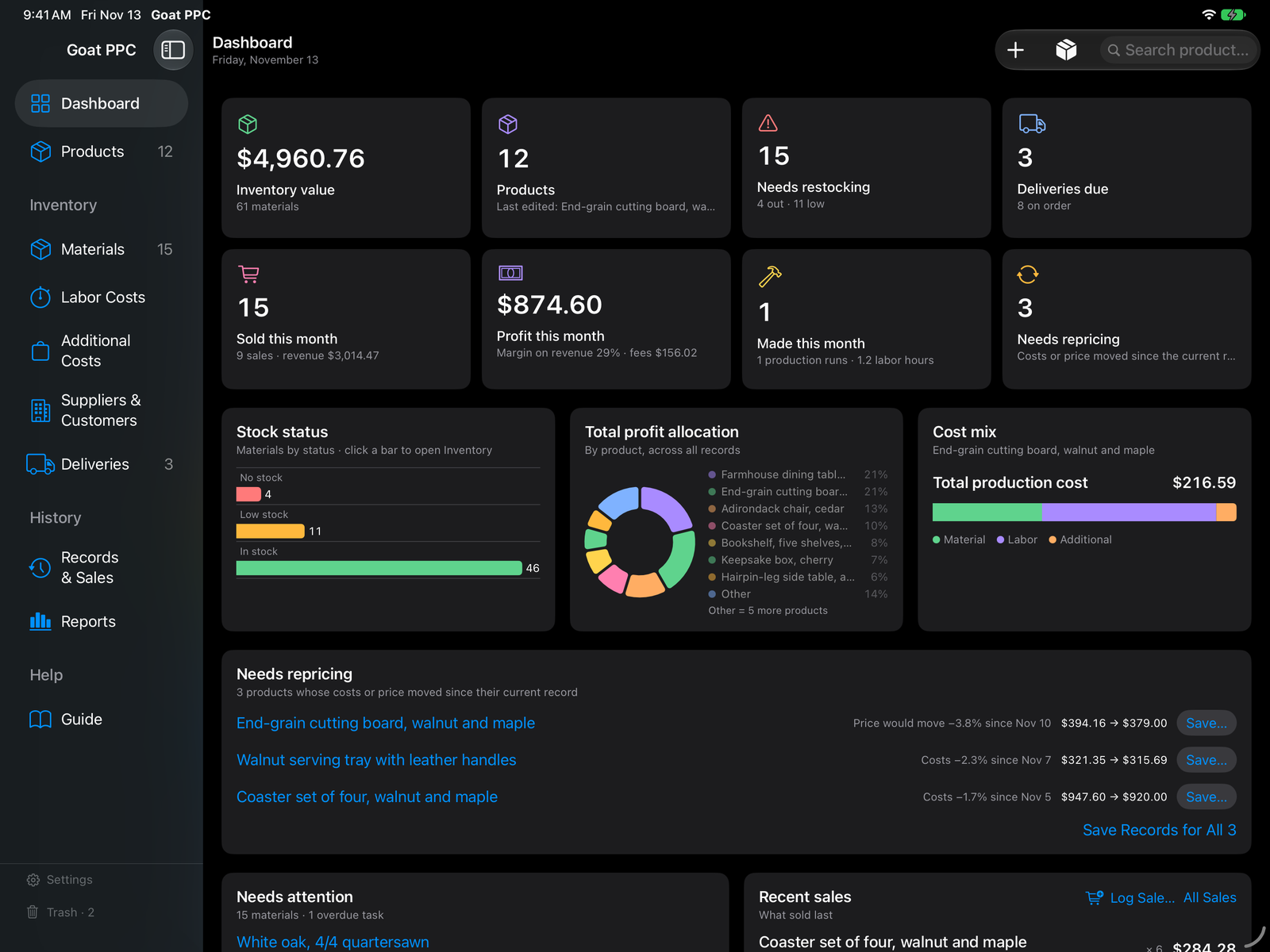
  • The Dashboard: inventory value, stock status, deliveries due, sold and profit this month, units made, needs repricing, profit allocation, cost mix, monthly revenue and profit goals with the month's projected landing, and a Needs attention list with one-click Receive and Order.

⌘Fast on a Mac, at home on an iPad

Built with Apple's frameworks for each device, not wrapped from a web page.

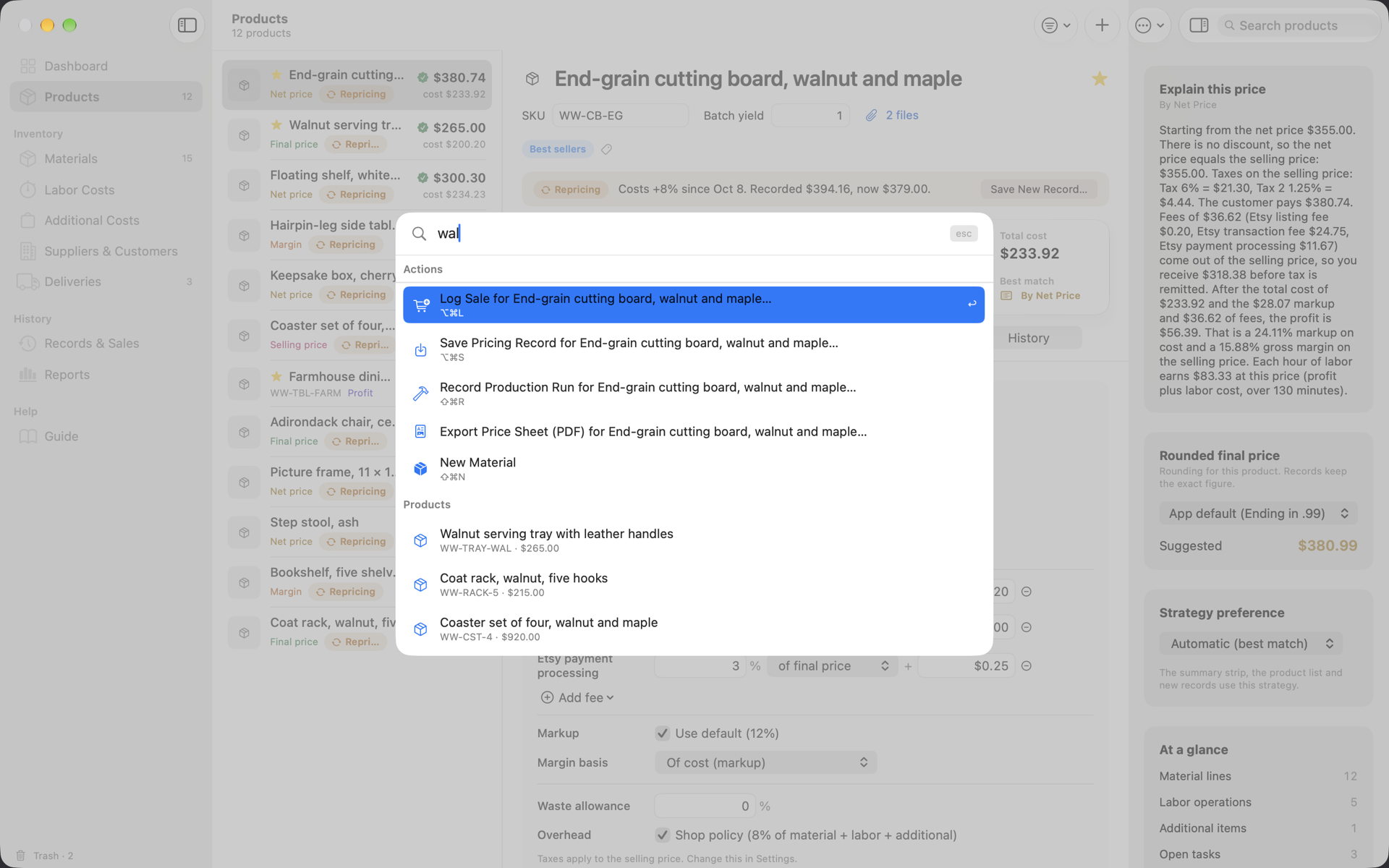
  • Open Quickly (⌘K) reaches any product, material, supplier, customer, record, section, action or Guide topic; Spotlight finds products, materials, suppliers, customers and pricing records by name or SKU.
  • On the iPad: sidebar and inspector beside the content in landscape and out of the way in portrait, product windows in Stage Manager, the Files app for imports and exports, the system print and share sheets, and text that follows the size you read at.
  • Number fields understand fractions, sums and units: 1 1/2, 3*4+2, 2 ft 6 in.
  • Drag materials into a cost sheet, paste a table of lines, copy tables out, drop a CSV or backup on the window; undo everything, even deletes.
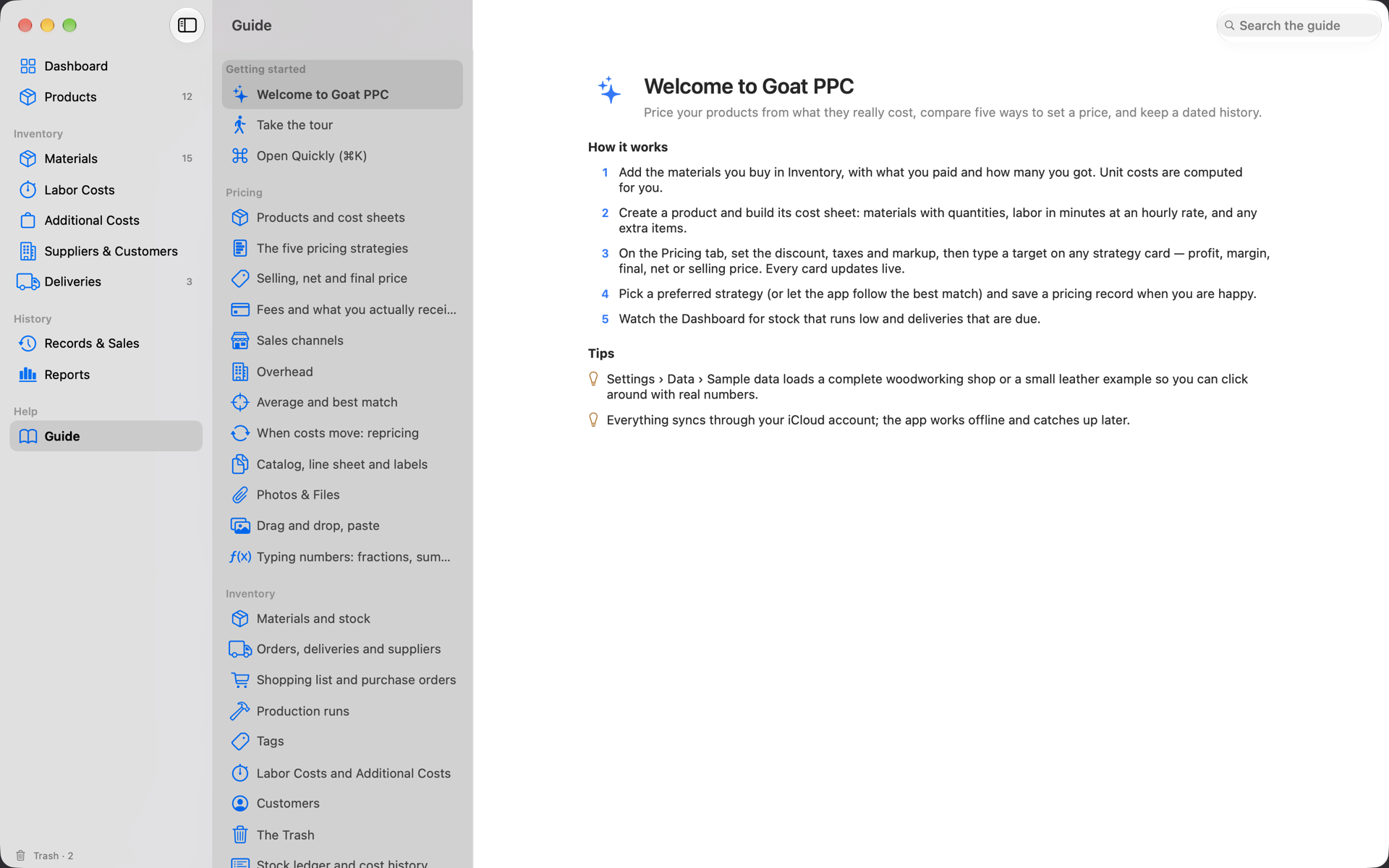
  • Windows come back as you left them; products can open in their own windows; a guided tour and a complete in-app Guide explain every part.
How it works

From a pile of receipts to a price you can quote, in seven steps.

This is the exact flow the app's own Guide teaches. Every screen below is the real app, showing the sample woodworking shop that ships with it.

Set up the shop once

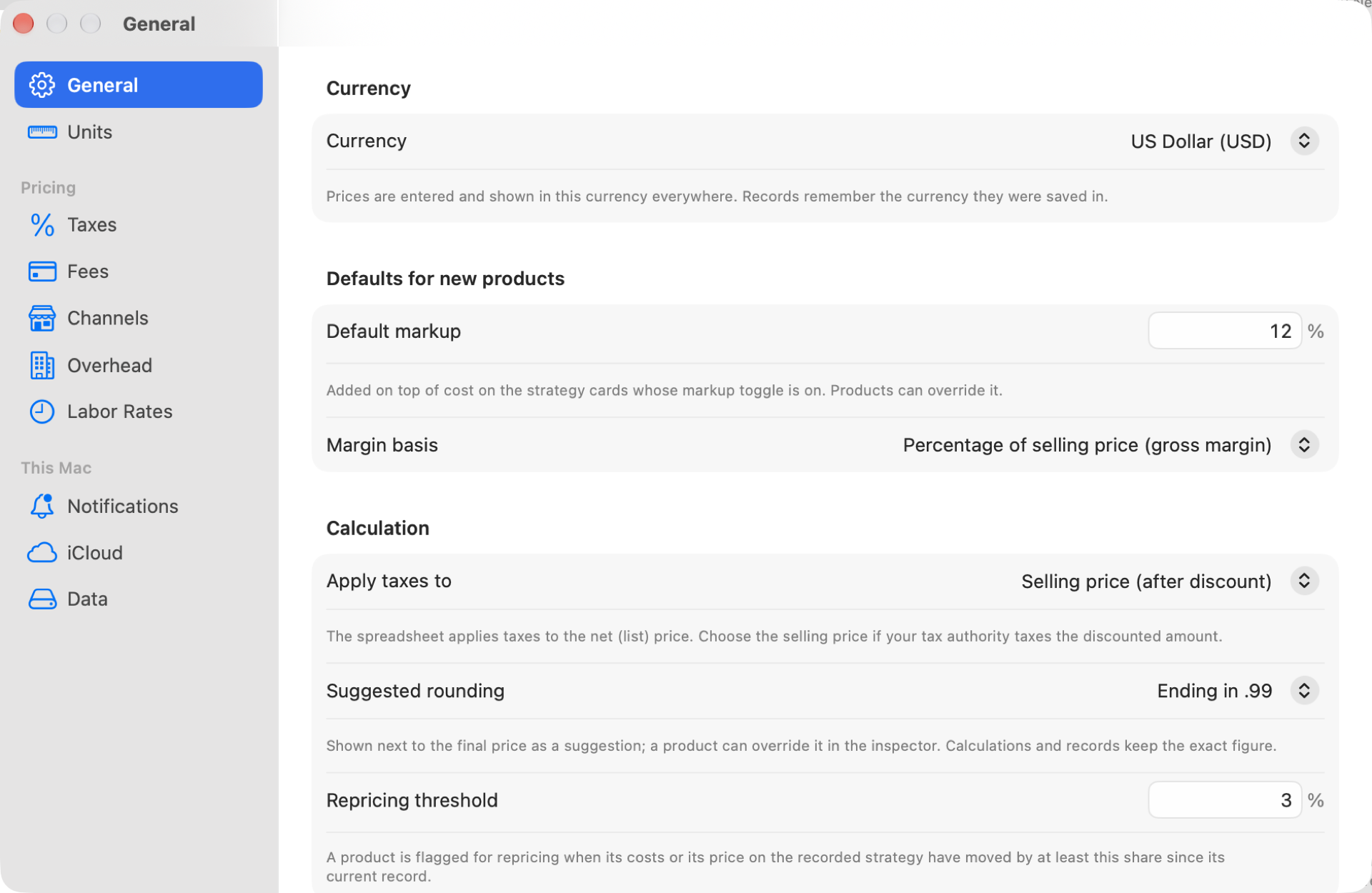
Settings holds what the spreadsheet kept on its Setup page: your currency, default markup, margin basis, what taxes apply to, the rounding suggestion, the repricing threshold, the paper size and monthly goals. Units, taxes, fees, sales channels, overhead, labor-rate presets, notifications, iCloud and your data each have a pane.

How: ⌘, opens Settings. The setup assistant runs on first launch and can load a complete sample workshop so you can click around with real numbers before entering your own.

Settings › General: currency, default markup, margin basis, apply taxes to, suggested rounding and repricing threshold.

Add what you buy

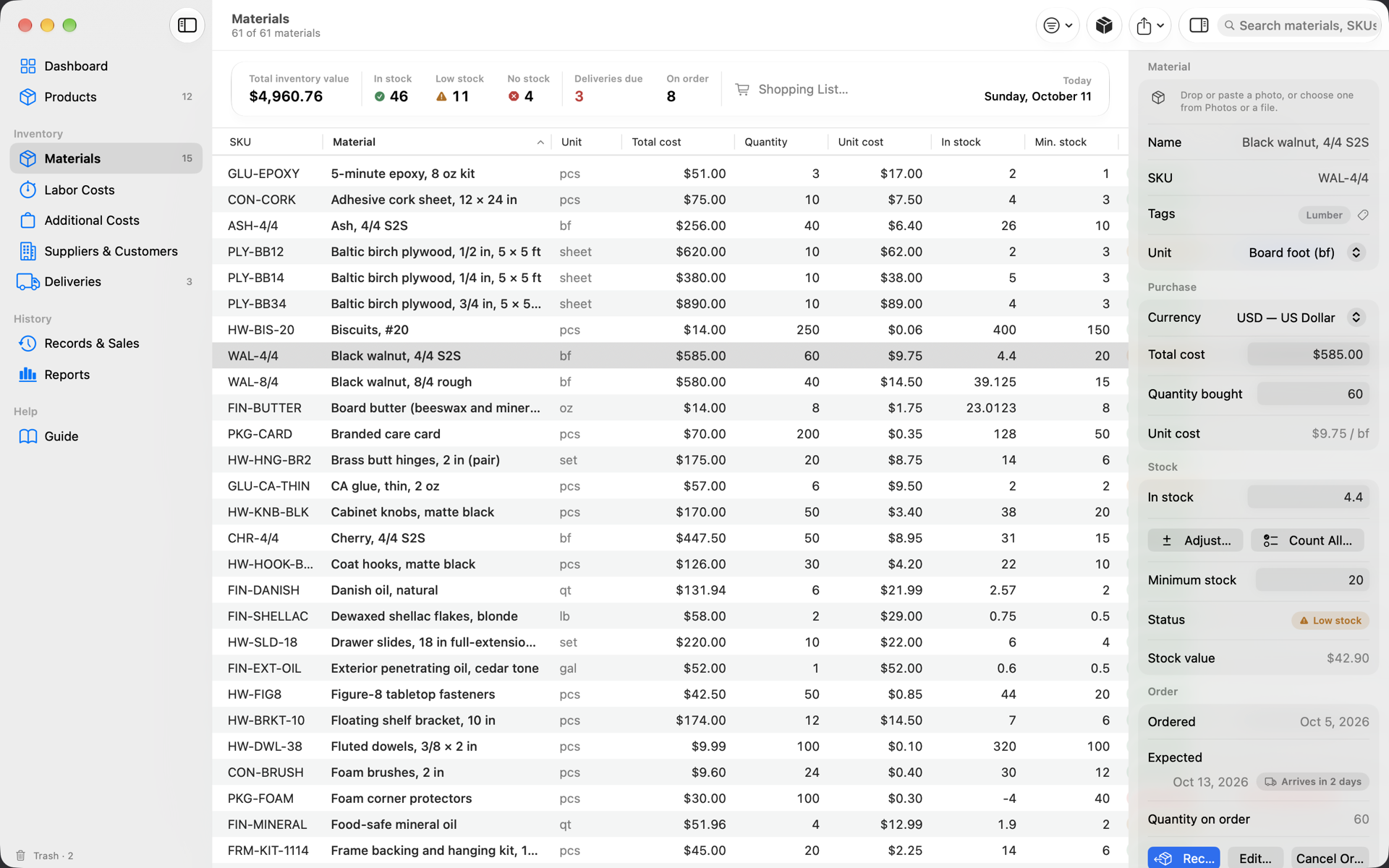
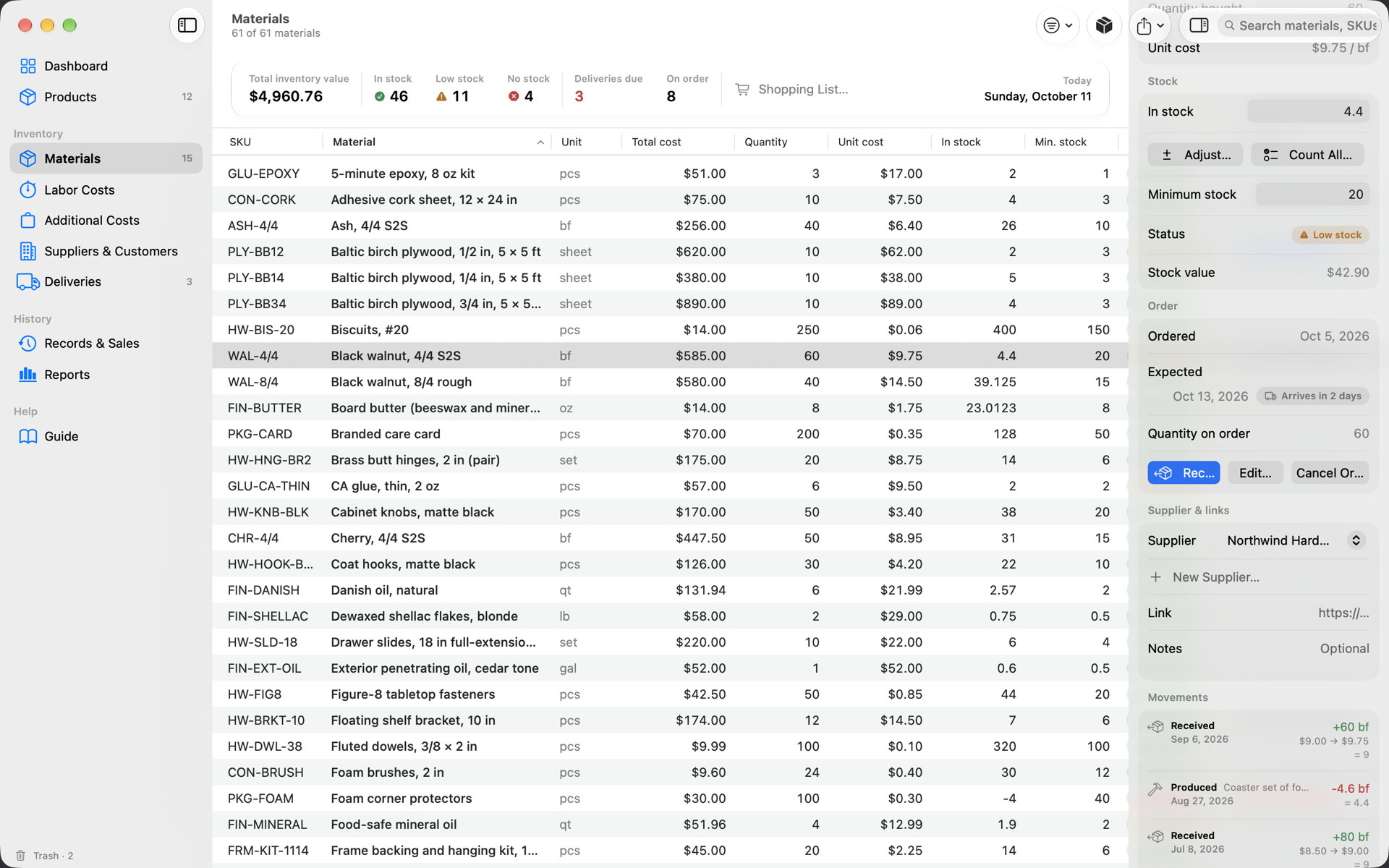
Materials go into Inventory with the total you paid and the quantity you got; the unit cost is computed. Fill in what is on the shelf and the minimum you want to keep, and the status, the stock value and the shopping list take care of themselves.

How: Materials › New Material (⇧⌘N), or File › Import Materials from CSV… — the original spreadsheet's Inventory sheet imports directly, through a preview. The inspector (⌥⌘I) holds supplier, currency, link, notes, tags and the stock ledger.

Materials: the inventory table with SKU, unit, total cost, quantity, unit cost, in stock and minimum stock, with the walnut material open in the inspector.

Build the cost sheet

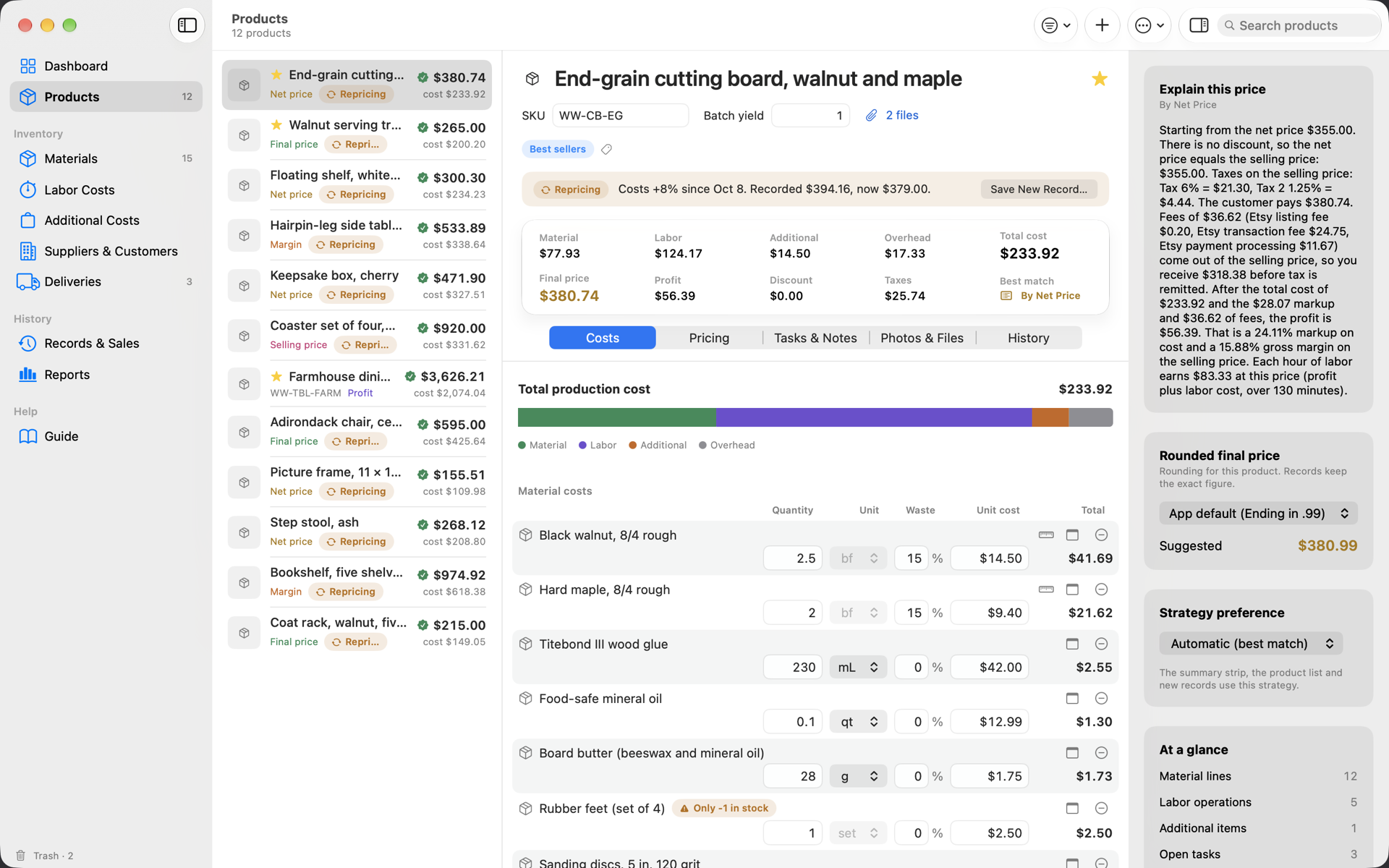
A product's Costs tab lists materials with quantities and waste, operations in minutes at an hourly rate, and extra items. Totals update as you type; the cost-mix bar shows where the money goes.

How: Products › New Product (⌘N). Click Add material and type to search your inventory — or type a new name to create it. Return in the last field adds the next row; drag a material from Inventory onto the sheet; right-click a section header to paste a whole table of lines.

A product's Costs tab: the total production cost bar and the materials table with quantity, unit, waste, unit cost and line totals.

Pick a target and compare five prices

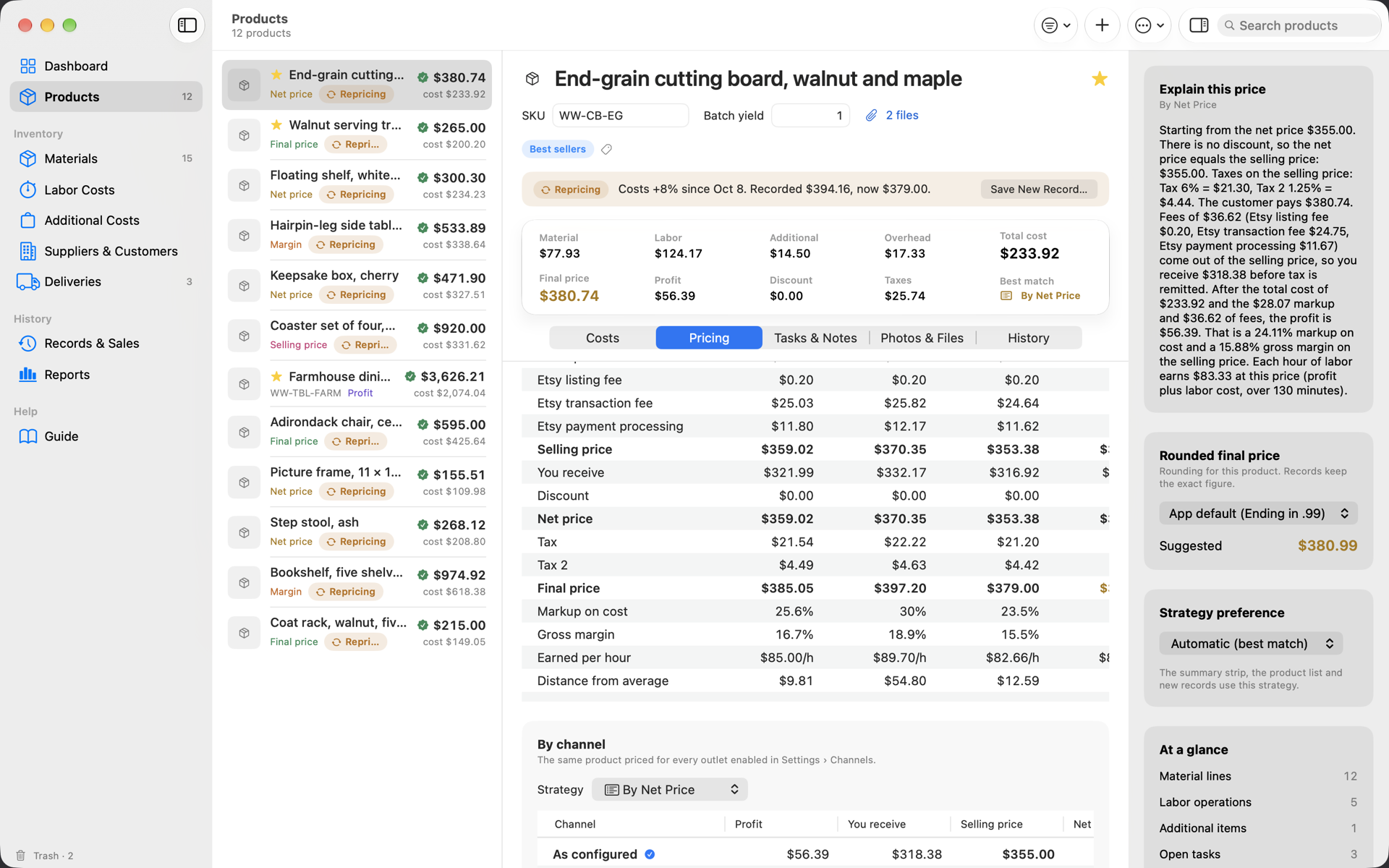
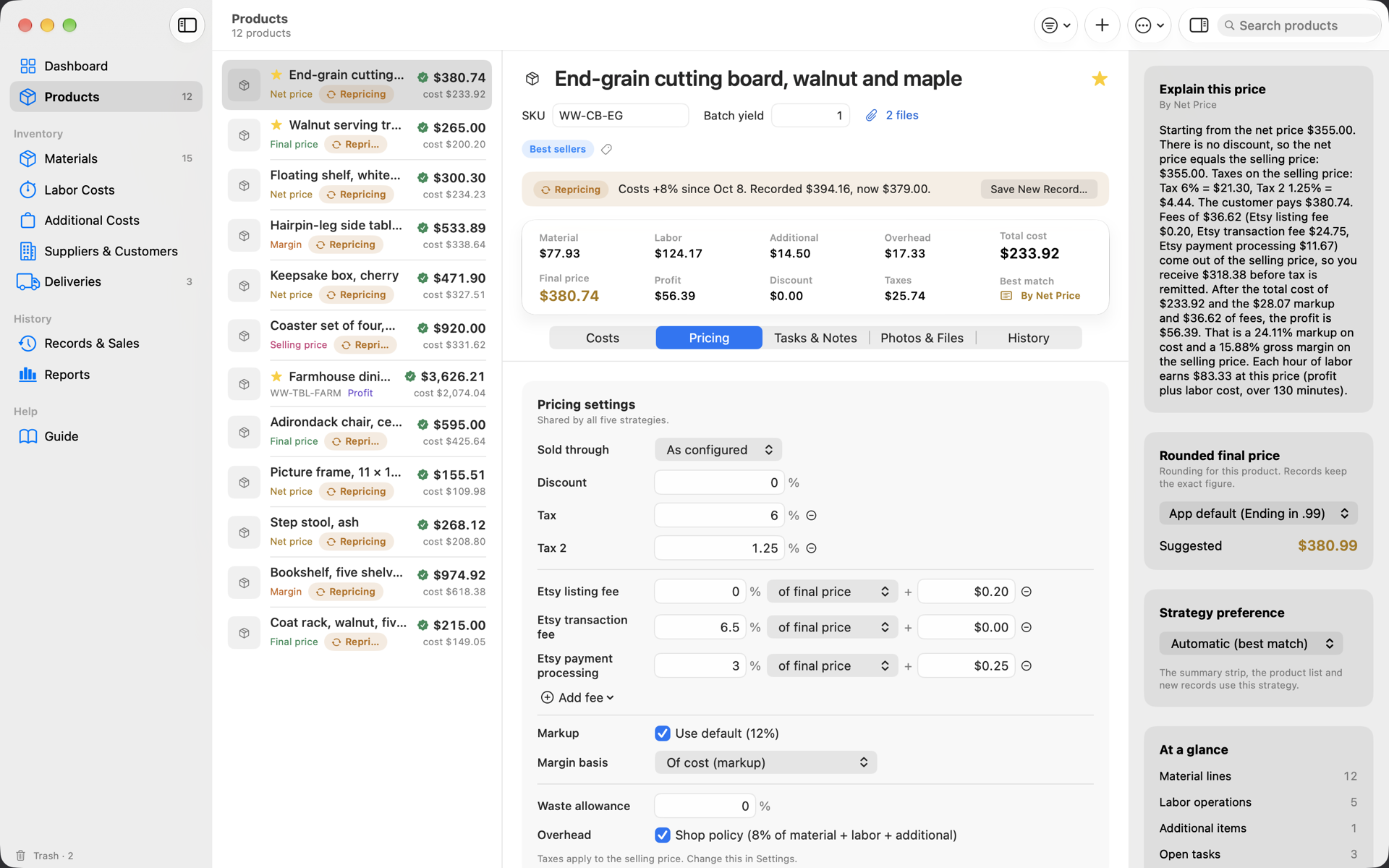
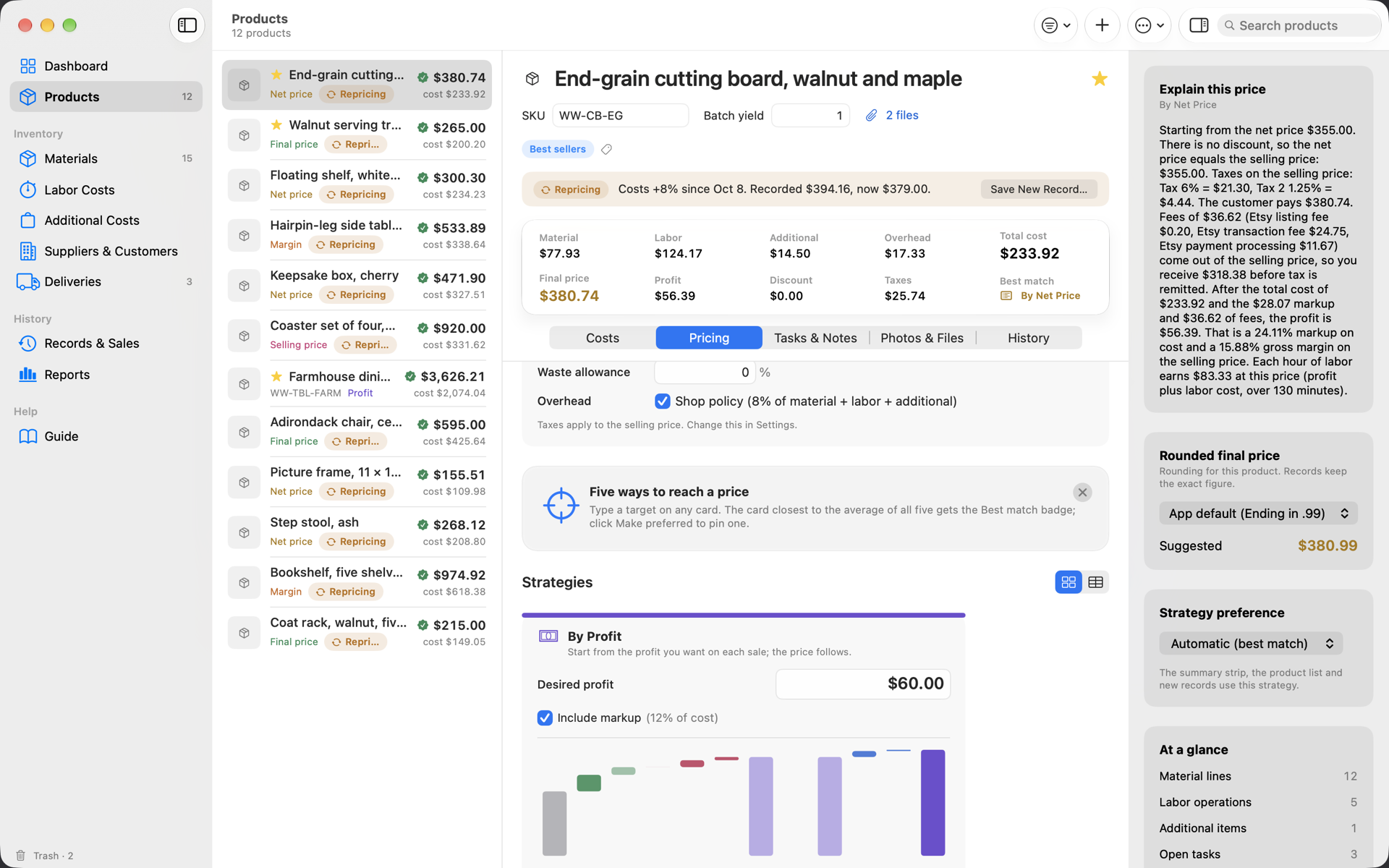
On the Pricing tab, set the discount, taxes, fees and markup once. Then type a target on any strategy card — the profit you want, a margin, a sticker price — and every card updates live, with what you receive after fees and what each hour of labor earns.

How: Sold through picks the channel the product is priced for. Make preferred pins a strategy; otherwise the summary follows the Best match. ⌥⌘T switches to the comparison table; the inspector explains the chosen price in plain words.

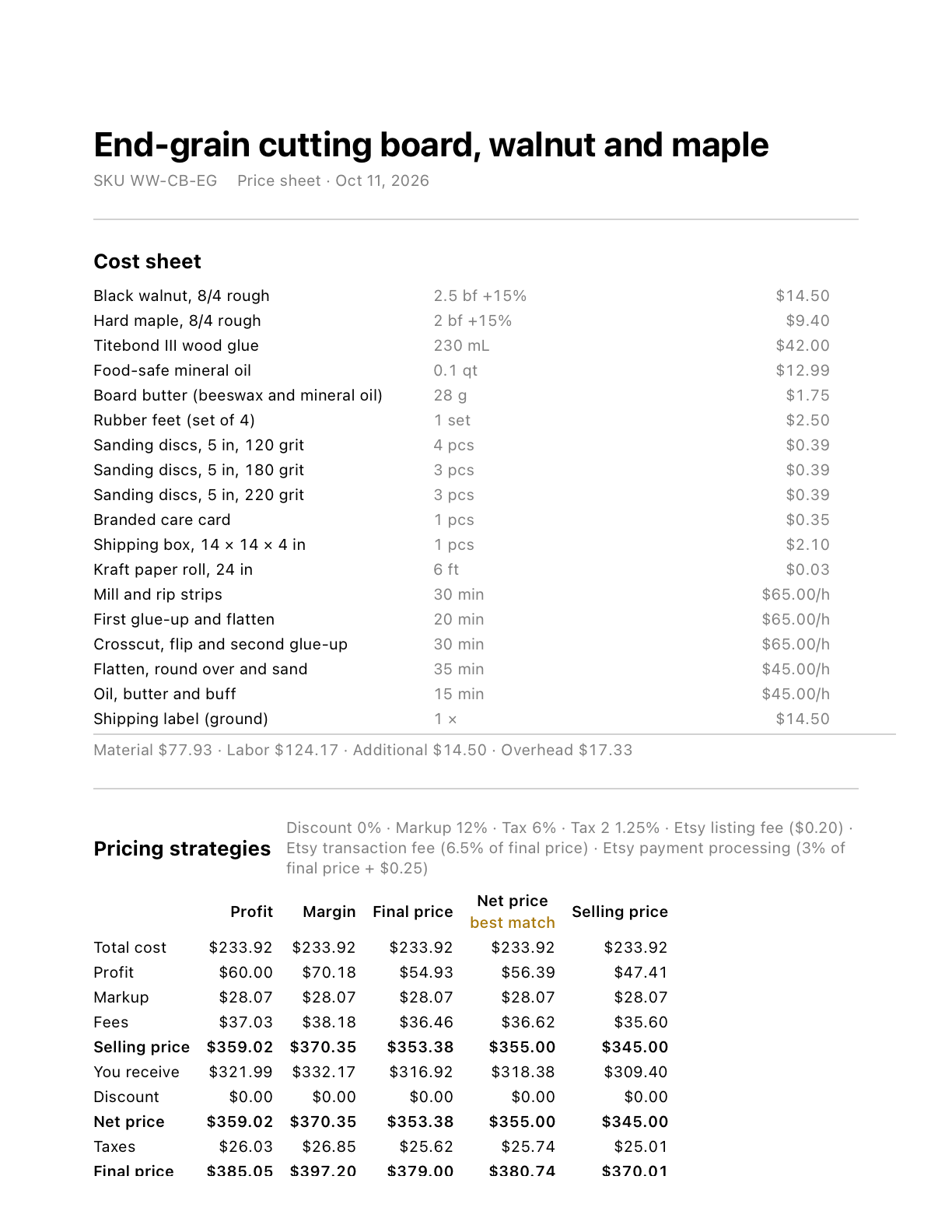
The comparison table on the Pricing tab: By Profit, By Profit Margin, By Final Price, By Net Price and By Selling Price side by side, with the By channel table beneath.

Save a record when you are happy

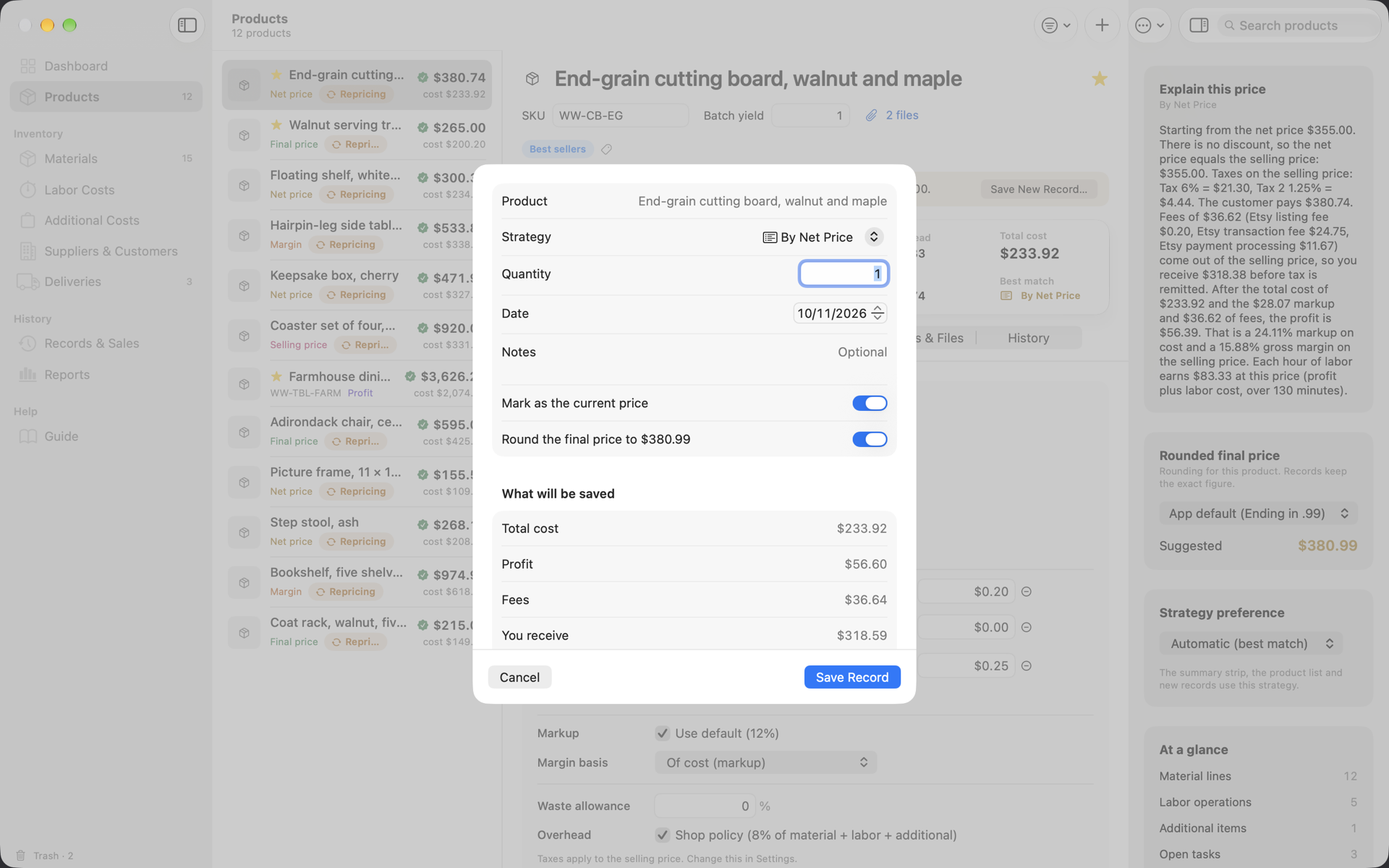
A pricing record freezes the whole board — every cost line, strategy, discount, taxes, final price and quantity — so the history explains itself later, and the app can tell you when costs have drifted away from it.

How: ⌥⌘S or Save record… on a card. Choose the strategy, quantity, date and notes, and whether to round the final price. Mark as the current price makes it the price the product shows everywhere. Records & Sales (⌘8) lists them all.

The Save Pricing Record sheet over the product window: strategy, quantity, date, rounding and notes.

Log what sells, make what you sold

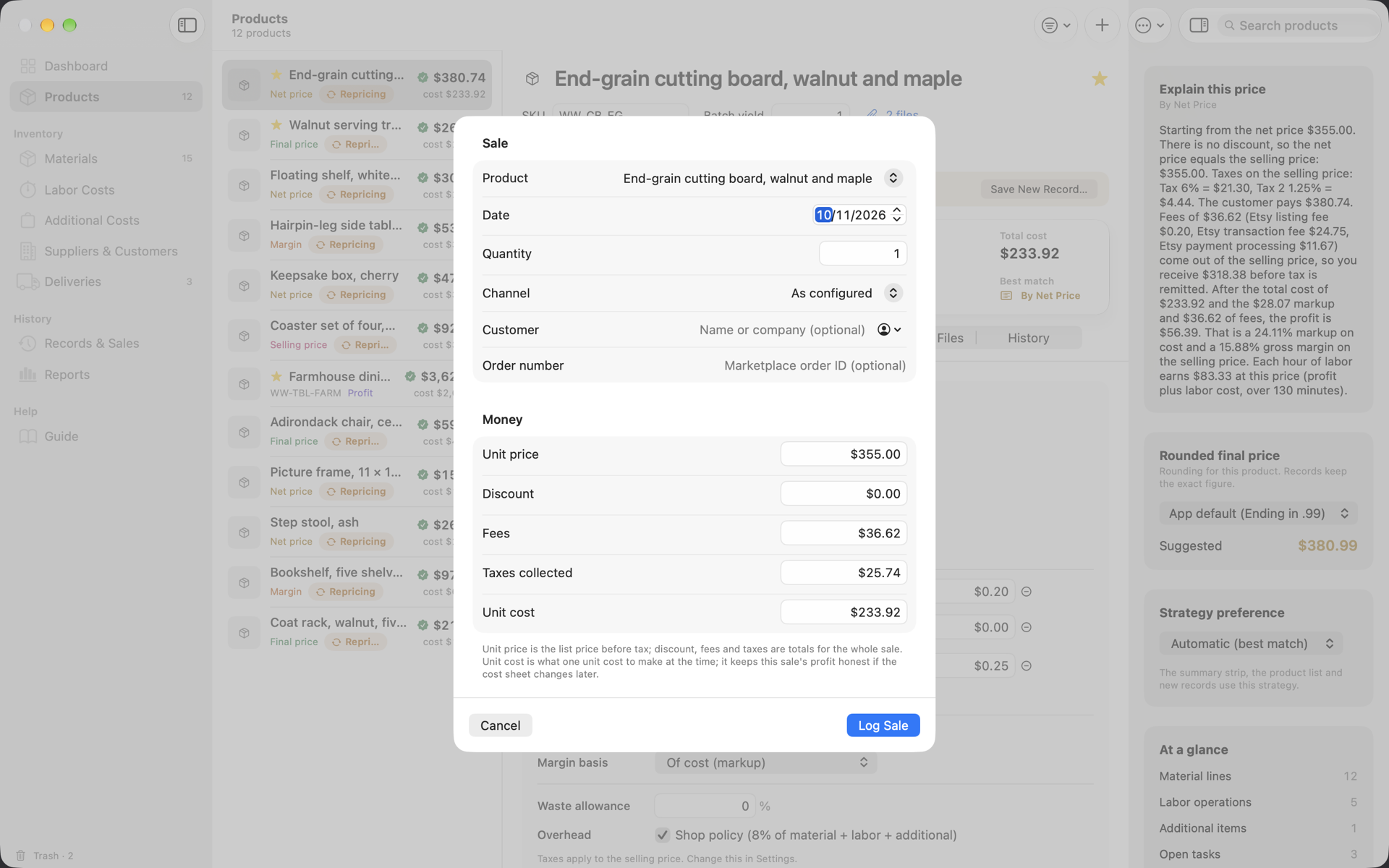
A sale records units, what the buyer paid, the marketplace's fees, taxes collected and the cost at the time, so profit stays honest even when a cost sheet changes later. A production run takes the materials a batch used off the shelf, waste included.

How: ⌥⌘L logs a sale; ⇧⌘R records a production run. Or import a month of Etsy or Shopify orders in one go through a preview that shows exactly what will be added.

The Log Sale sheet: product, date, quantity, channel, customer, order number, unit price, discount, fees, taxes collected and unit cost.

Read the reports, print the paper

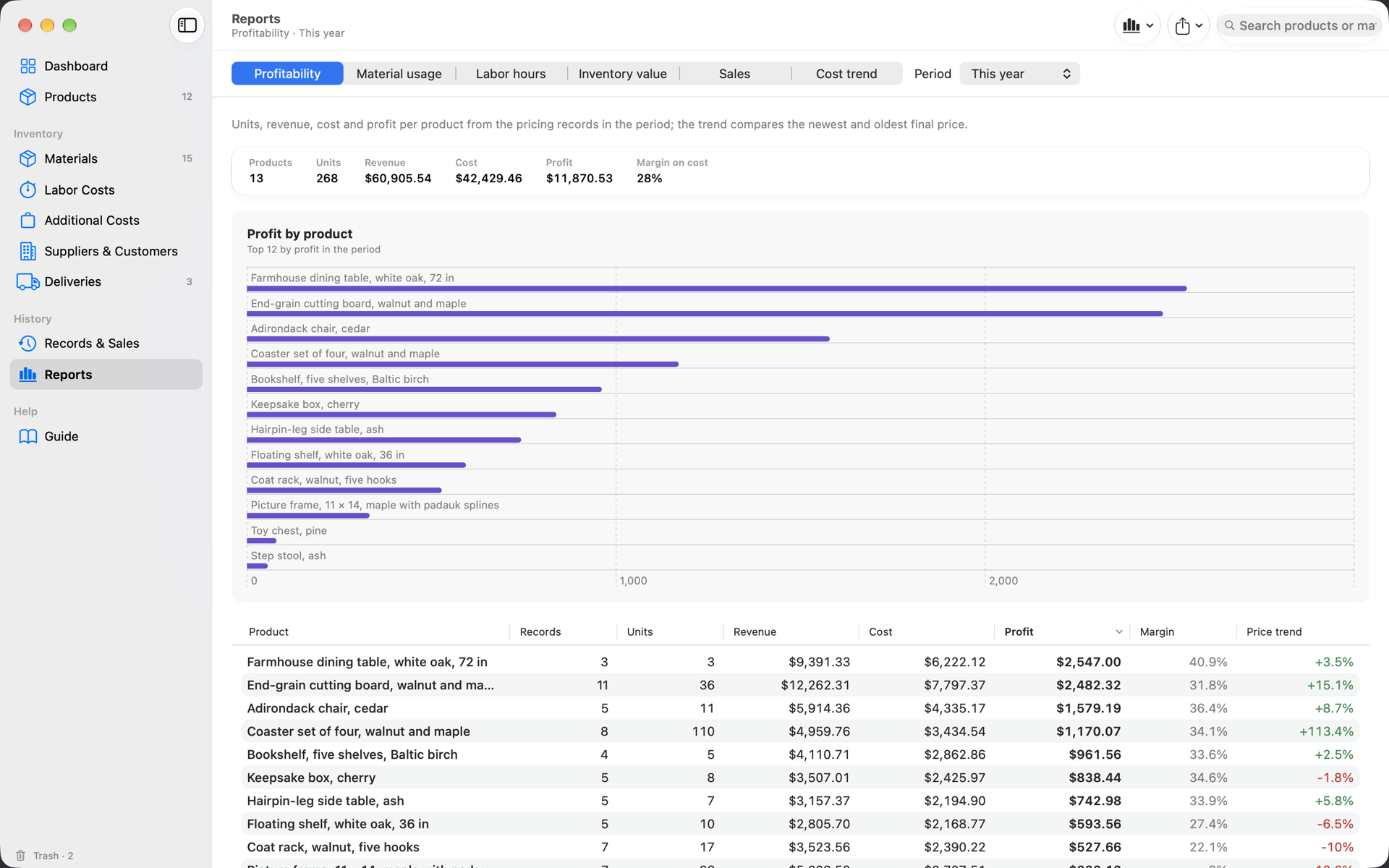
Reports show which products earn, what each material was priced into versus actually consumed, the hours behind the work, inventory value over time, sales by product, channel, customer or month, and how costs trended. Every one exports to CSV or PDF.

How: Reports (⌘9), pick the report and the period. Then File › Catalog / Line Sheet (PDF)… for a priced catalog, Labels… for bin labels and price tags, or Export Price Sheet for one product's complete board.

Reports › Profitability: products, units, revenue, cost, profit and margin, with a profit-by-product bar chart and a sortable table.
The math

Five ways to reach a price — try the arithmetic the app runs.

The same formulas as the pricing spreadsheet many makers already use, reproduced to the cent. Change any number: every board recomputes, and the strategy closest to the average of all five is the best match.

Shared by every strategy

$100.00

Taxes are additive on the net price. The discount is the gap between the selling price you keep and the net price you list, so a 10 % discount off the list price still lands on your selling price. Fees, overhead, waste and batch yield are left out of this demo; the app handles them.

Best match

By Profit

  • Profit
  • Markup
  • Selling price
  • Discount
  • Net price
  • Taxes
  • Final price
Best match

By Profit Margin

  • Profit
  • Markup
  • Selling price
  • Discount
  • Net price
  • Taxes
  • Final price
Best match

By Final Price

  • Profit
  • Markup
  • Selling price
  • Discount
  • Net price
  • Taxes
  • Final price
Best match

By Net Price

  • Profit
  • Markup
  • Selling price
  • Discount
  • Net price
  • Taxes
  • Final price
Best match

By Selling Price

  • Profit
  • Markup
  • Selling price
  • Discount
  • Net price
  • Taxes
  • Final price

Average of the five

  • Profit
  • Selling price
  • Net price
  • Final price

Best match: — — the card whose profit, selling, net and final price sit closest to these averages. In the app it is a tie-breaker between your own targets, not a market recommendation.

Selling price

What you keep before tax, after any discount. Cost + profit + markup.

Net price

The list price before tax — what you advertise so a discount still lands on your selling price.

Final price

The net price plus taxes — what the customer sees on the tag. No discount? Selling and net are equal. No taxes? Net and final are equal.

Screenshots

Every corner of the app, as it really looks.

Taken from the app at 1440 × 900 with the sample woodworking workshop loaded. Click any one to see it full size.

Paper & automation

Catalogs, labels, price sheets, quotes — and Siri.

Documents

  • Price sheet — one page with a product's costs and all five strategies; Quick Look preview, PDF, print (⌘P) or share.
  • Quote — a customer-ready PDF from any pricing record, with validity, deposit, terms and optional itemised lines. Mark as Sold… turns it into a sale.
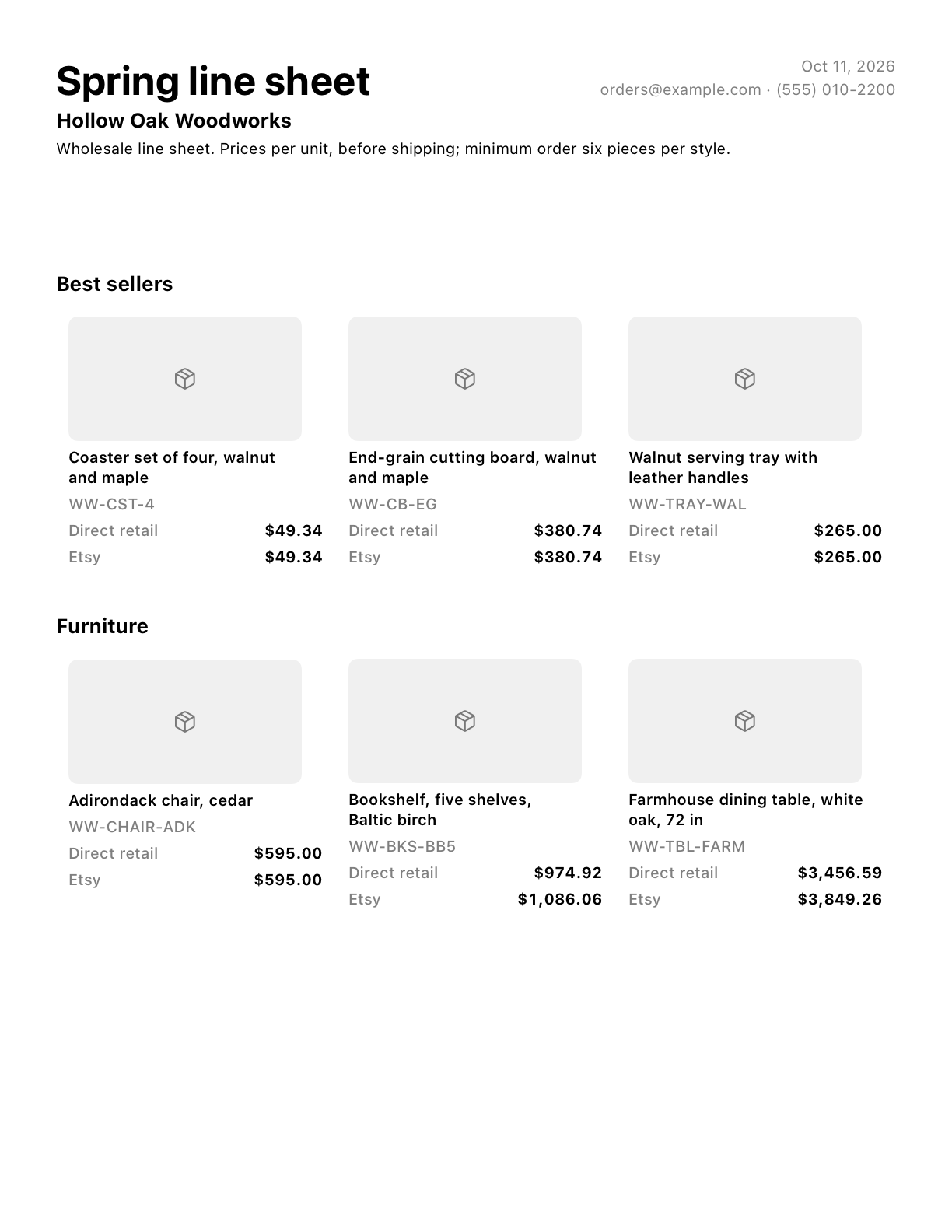
  • Catalog / line sheet — all active products or a selection as a grid of cards or a list, grouped by tag, with one price column per sales channel (wholesale shows its discounted price, a marketplace the price that covers its fees), final or net price, SKUs and photos optional. Pages break between cards, never through them.
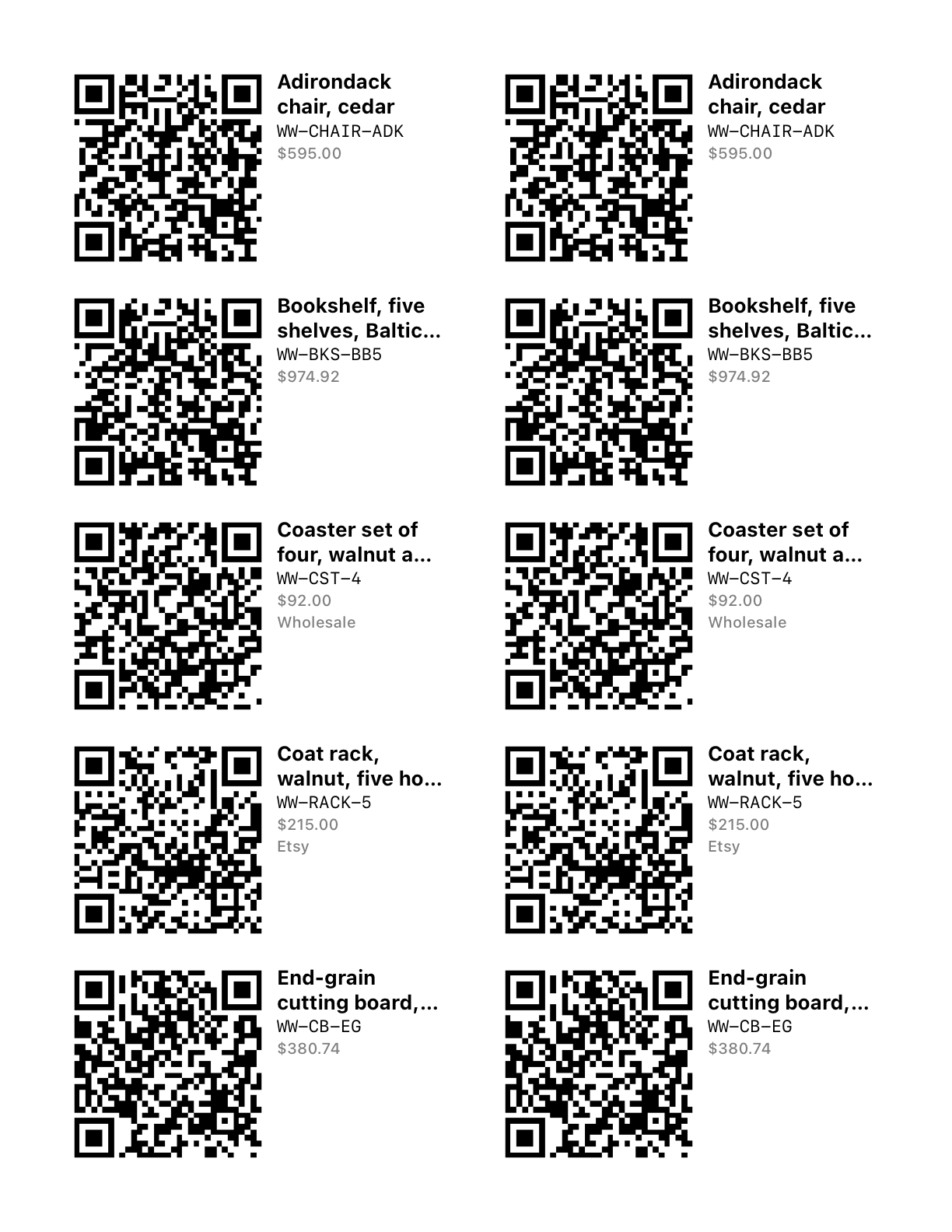
  • Labels — bin labels (name, SKU, supplier · unit, reorder level) and price tags (name, SKU, price, channel) on Avery 5160 (3 × 10) or 5163 (2 × 5) for US Letter and L7160 (3 × 7) or L7163 (2 × 7) for A4, several copies per item, skipping labels already used on a sheet. The QR code encodes the SKU, or a goatppc:// link that opens the item in the app.
  • Reports — every report as CSV, PDF, share or print; records and sales tables copy as tab-separated text for Numbers or Excel.
  • Paper — US Letter or A4 for every PDF and print job, chosen once in Settings › General or taken from your region; a label sheet prints on its own stock's paper.

Shortcuts, Siri, Spotlight, notifications

  • Ten App Shortcuts: Get Product Price, Materials Needing Restock, Open Product, Open Section, Receive Delivery, Adjust Stock, Save Pricing Record, Log Sale, Start Labor Timer and Stop Labor Timer — so Siri can answer “What does the wallet cost in Goat PPC?” and a shortcut can book a delivery into stock without opening the app.
  • Products, materials, suppliers, customers and pricing records are indexed in Spotlight by name and SKU; a result opens the item in the app.
  • Local notifications when stock runs low, a delivery is due, or more products need repricing than last time — each one opens the right place.
  • Deliveries and tasks can be handed to the Reminders app, due at 9:00 on their date.
  • goatppc://product/…, material/…, record/… and section/… links work from Notes, Reminders or a browser on your Mac or iPad.
Now on iPad

Goat PPC for iPad.

The same shop, the same private iCloud database, in the hand you have free on the floor. Every section, sheet, report, export and Shortcut of the Mac app, laid out for touch, Split View and Stage Manager — one app, one purchase, both devices.

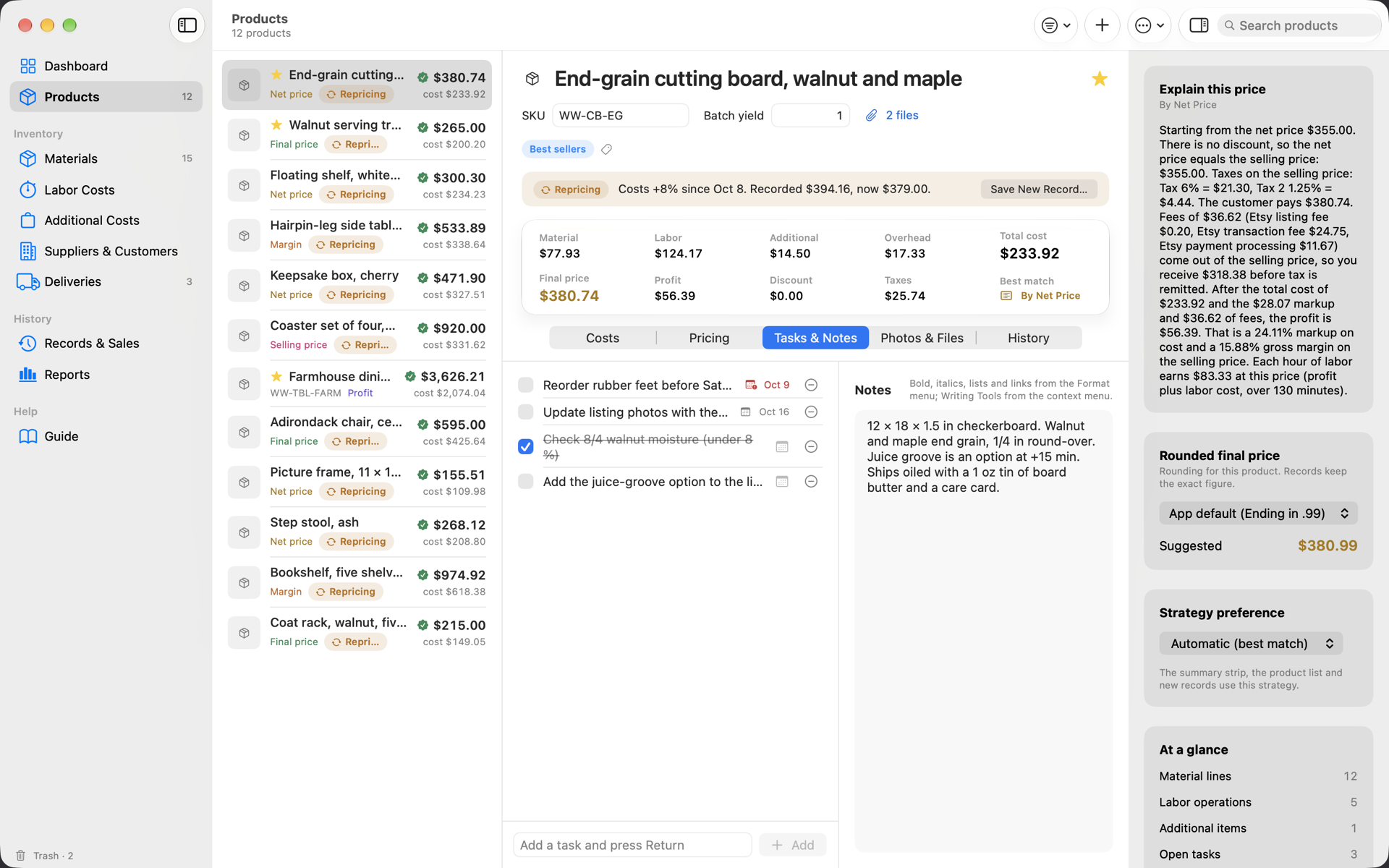
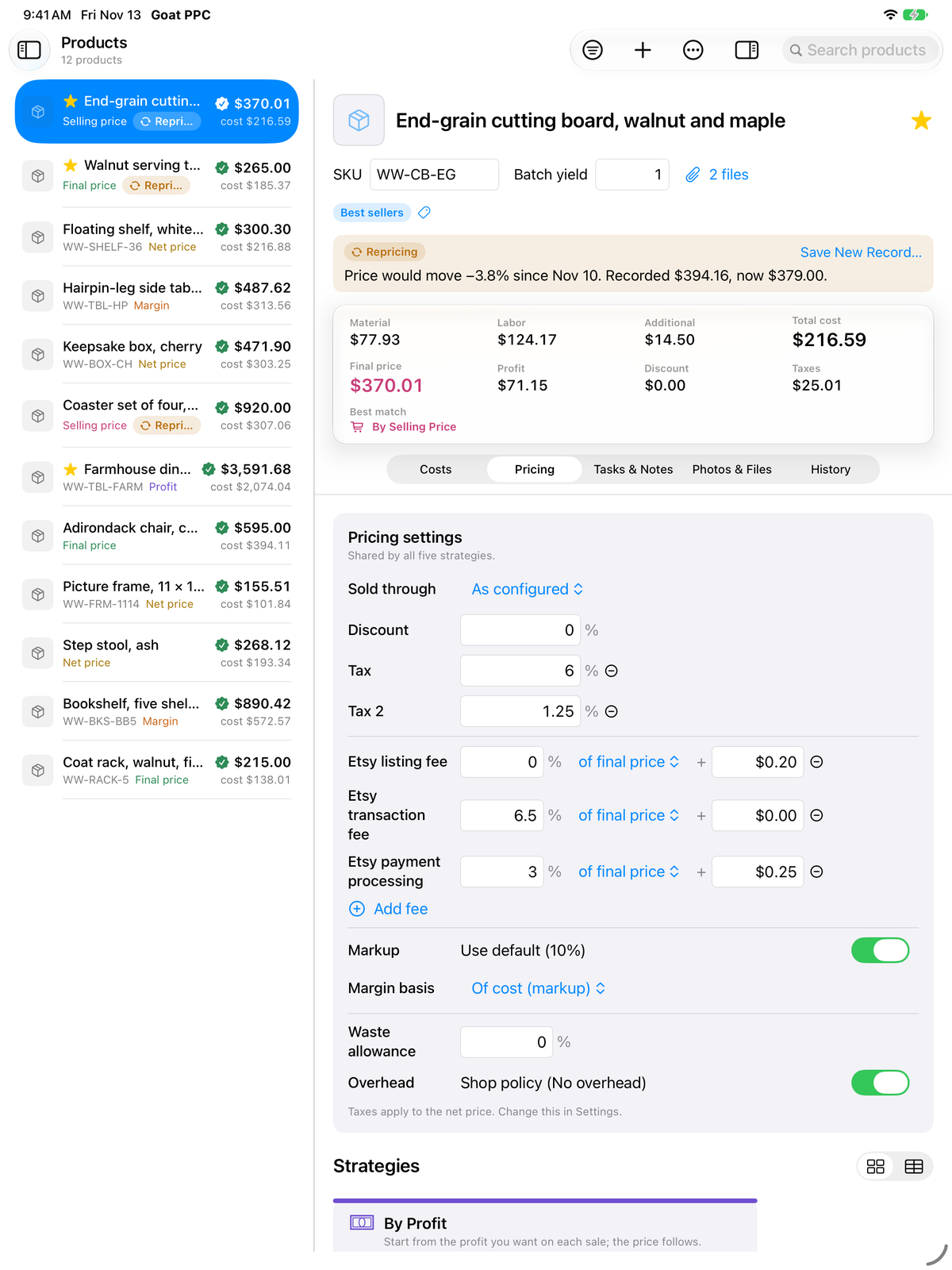
Goat PPC on an iPad in landscape: the sidebar and the product list on the left, the End-grain cutting board's Pricing tab in the middle with its repricing banner and summary strip, and the inspector explaining the price on the right.
The Dashboard on an iPad in portrait, dark appearance: eight tiles, stock status, profit allocation, cost mix, the products that need repricing, needs attention and recent sales.
Products on an iPad in portrait: the product list beside the Pricing tab, with the section's name and count at the top left and the toolbar at the top right.
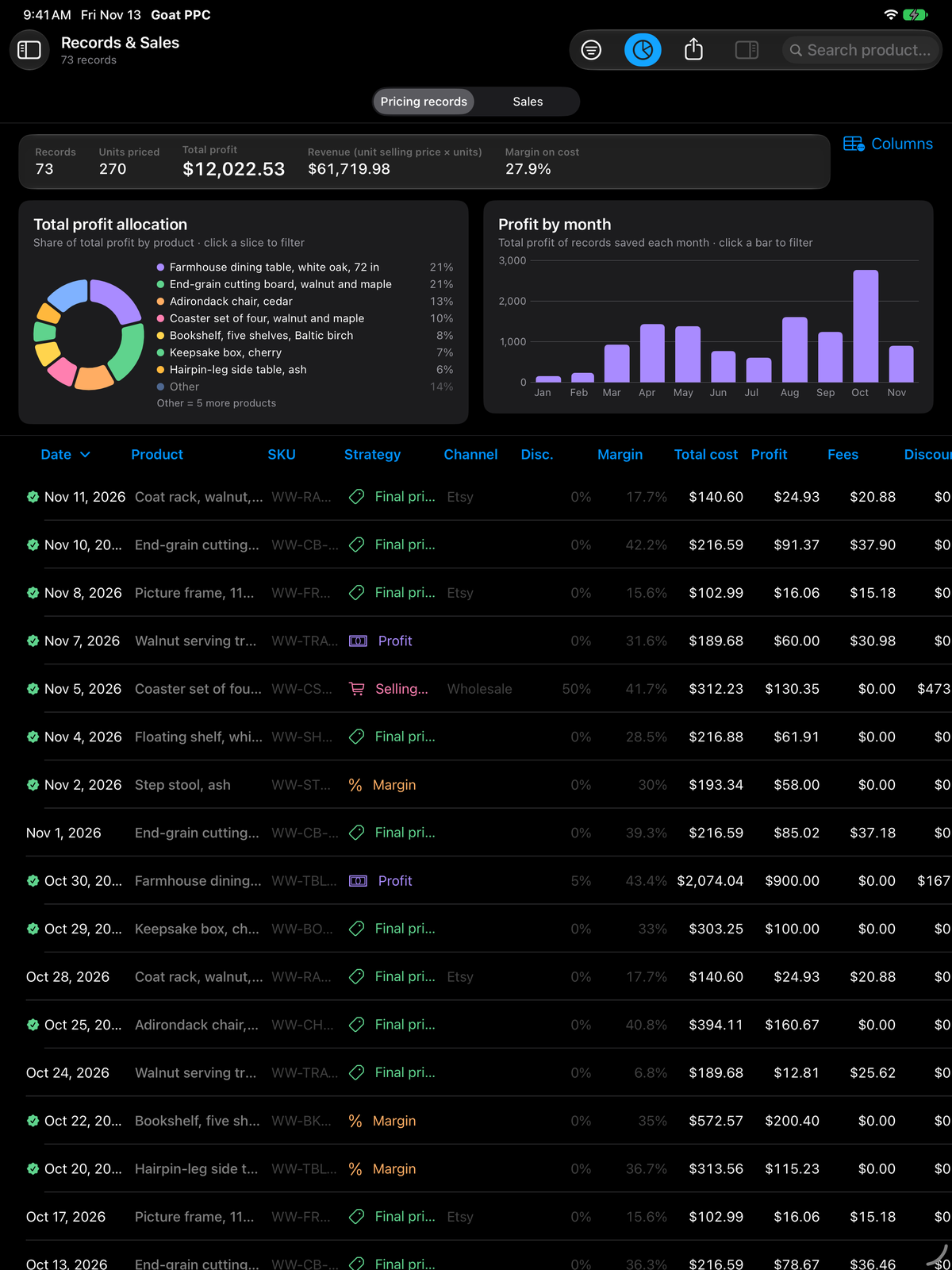
Records and Sales on an iPad in portrait, dark appearance: the totals strip, the profit doughnut and the monthly bars side by side, and the records table beneath.
The Shopping list sheet on an iPad over the Materials section.
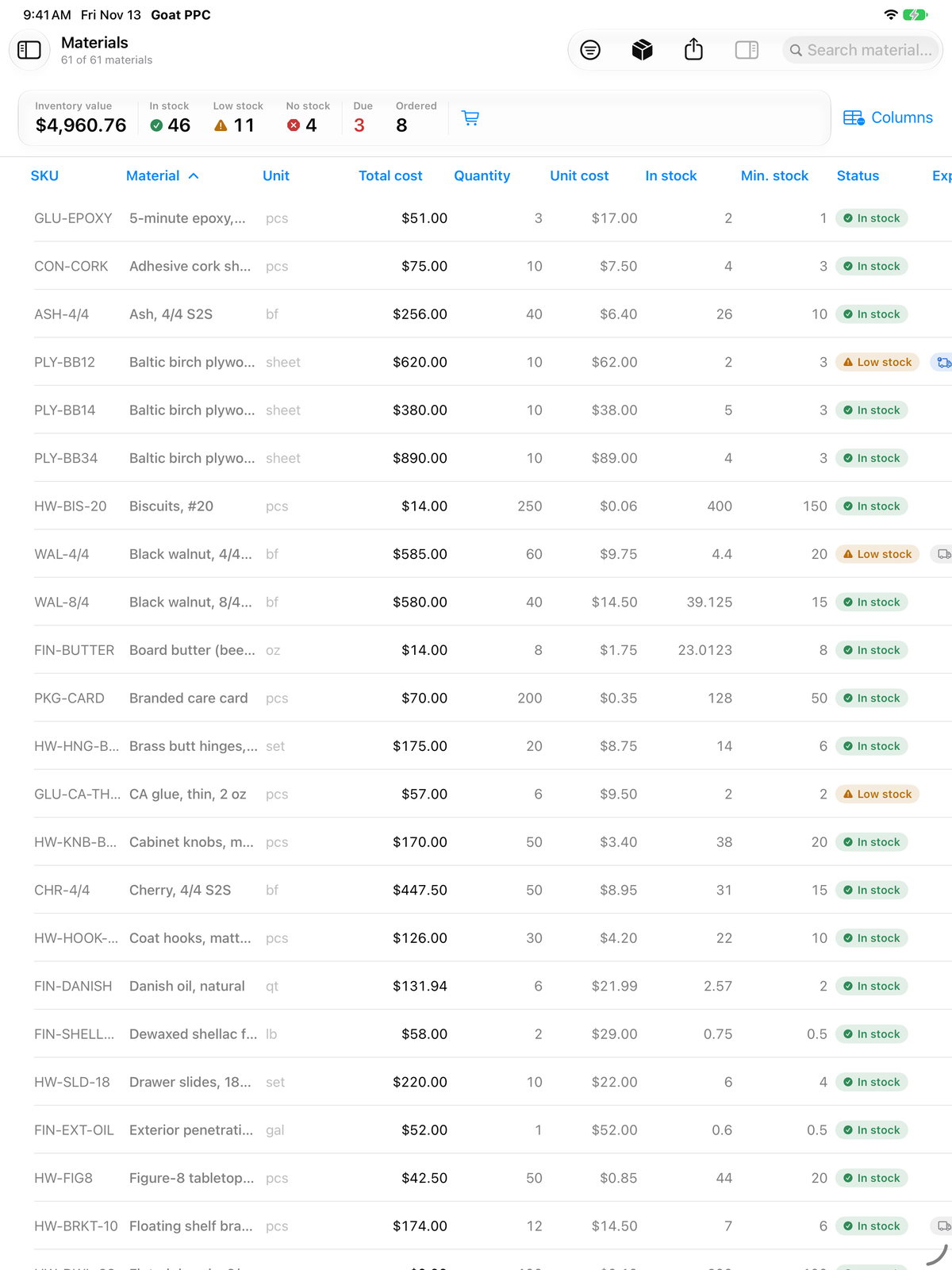
Materials on an iPad in portrait: the inventory value strip with the Shopping List button, the Columns menu and the materials table with SKU, unit, total cost, quantity, unit cost, stock, minimum and status columns.

The same app

  • All ten sections, the inspector, Open Quickly and every sheet — Save Pricing Record, Log Sale, quotes, catalogs, labels, the shopping list, stock counts, the Trash; Settings and What's New open as sheets, and Settings sits at the bottom of the sidebar.
  • One private iCloud database: a price set on the Mac is on the iPad before you have put the Mac down, and a stock count taken on the floor is on the Mac.
  • Reports, CSV and PDF exports and backups go through the Files app; Reminders, Spotlight and the Shortcuts actions work the same way.
  • The Guide and the guided tour, with a topic on what is different on the iPad.

Made for the iPad

  • The section's name and count sit at the top left of the bar, as on the Mac. In landscape the sidebar and the inspector are columns beside the content, and the inspector follows the selection — open while one item is selected, closed when nothing is. In portrait the sidebar steps aside once you choose a section (the button at the top left or a swipe from the left edge brings it back) and the inspector is a popover from its toolbar button that closes with a tap anywhere else, so tables and the workspace keep their width.
  • Split View, Slide Over and Stage Manager — open a product in its own window beside the main one.
  • Wide tables scroll sideways, and a Columns menu above each one chooses which columns show; a tap selects a row and a cell of the selected row edits in place; every row keeps its actions on a long press; with a keyboard the Mac's shortcuts work (Find is ⌥⌘F).
  • Larger text: every list, form, sheet and inspector follows the iPad's text size, the accessibility sizes included. Fields widen, rows of buttons wrap and sheets grow; table text stops growing at the second accessibility size so the columns keep their room.
  • Photos from the camera, the library, the Files app, a paste or a drag from another app; files open in Quick Look; printing and sharing use the system sheets.
  • A goatppc:// link from a label opens the product or material — from Notes, Reminders, Mail or a scanned code.
Your data

Yours, on your Mac and iPad, in your iCloud.

Sync and offline

Everything syncs through the private database of your own iCloud account; the developer runs no server and can see nothing. The app works offline and catches up later. Settings › iCloud and the sidebar show the live sync state.

Backups

File › Export Backup… writes one .goatbackup file with every product, material, supplier, customer, record, sale, run, tag, unit, tax, fee, channel, photo and your settings. Automatic daily backups keep the newest thirty; a safety copy is written before any Replace, Erase or CSV import. Import a backup by double-click or drop, as a merge or a replacement.

Import and export

Materials, products (a product list, or whole cost sheets as a lines file), sales, pricing records, suppliers and customers import from CSV through a preview that spells out what is created, what changes and what is skipped; the original spreadsheet's Inventory sheet imports as is. Materials, products with their five prices, records, sales, suppliers and customers export as CSV with formula-safe escaping, and what the app exports it reads back.

The Trash

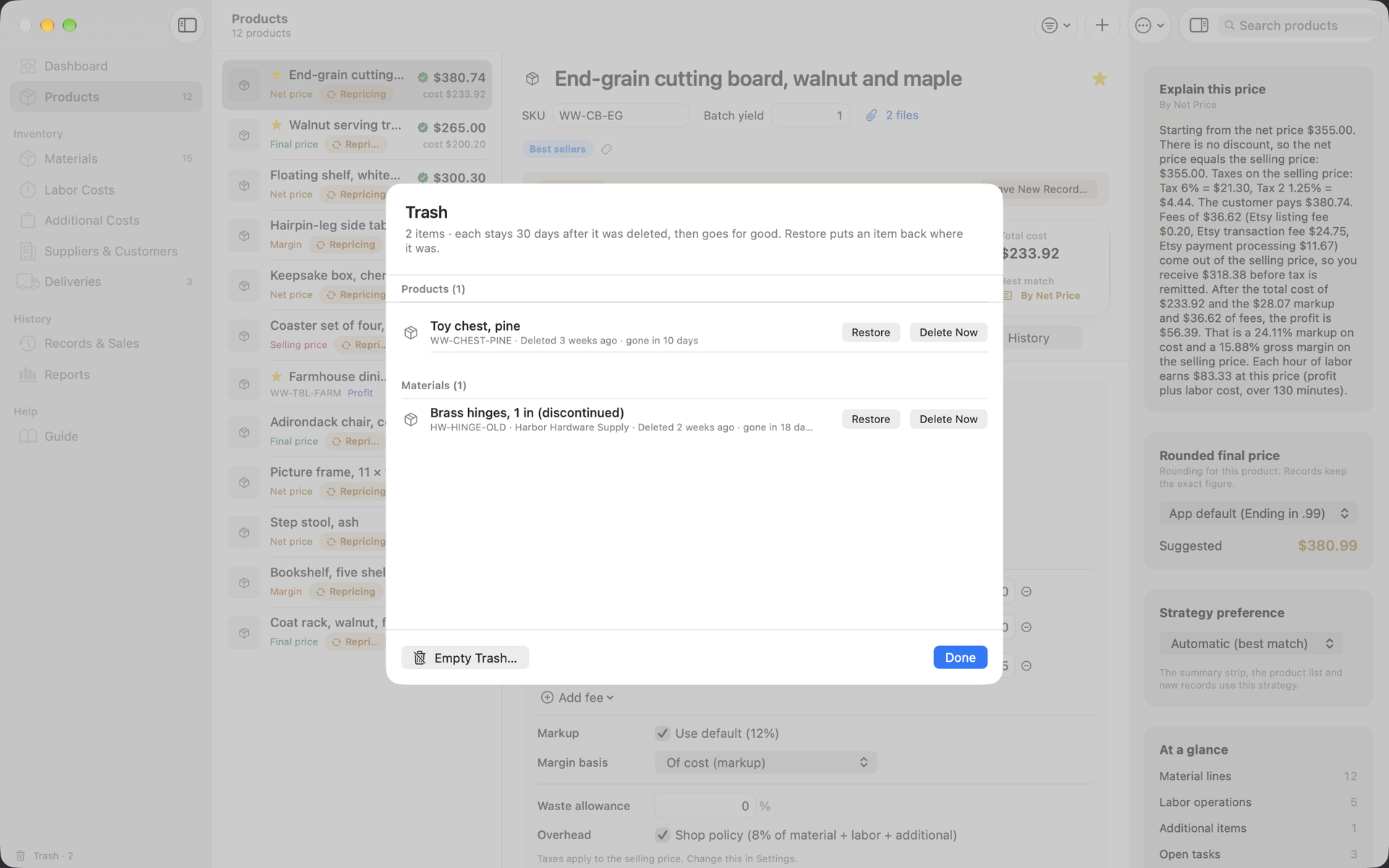
Deleting a product, material, supplier, customer, record, sale, operation or item moves it to the Trash without a dialog, where it waits 30 days before a daily sweep removes it for good; the sidebar shows Trash · n. Restore one item, delete it now, or empty the Trash. ⌘Z right after a delete brings it straight back.

FAQ

Questions makers ask.

Which Macs and iPads does it run on?

Goat PPC requires macOS 27 or later on the Mac and iPadOS 27 or later on the iPad. It is a native app for both, built with Apple's frameworks and nothing else — no web view, no account to create.

Does it print on A4?

Yes. Settings › General sets US Letter or A4 for every PDF, print job and label sheet, or follows your region. Labels come on Avery 5160 and 5163 for US Letter and on L7160 and L7163 for A4.

Is there an iPad version?

Yes — the same app, on the same App Store listing: one purchase covers the Mac and the iPad, and both share your private iCloud database, so a product priced on the Mac is on the iPad and a stock count taken on the iPad is on the Mac. Everything above is on the iPad too; the iPad section shows what is different about using it there.

Where can I get it?

Goat PPC is coming to the App Store for Mac and iPad, as one purchase for both. Write to [email protected] if you would like to hear when it is available.

I price with a spreadsheet today. Will the numbers match?

Yes. The engine reproduces the arithmetic of the pricing spreadsheet most makers use — the five strategies, the discount gross-up, additive taxes on the net price, markup as a share of cost, the average and the best match — to the cent, and the app's tests lock that parity. Your inventory sheet saved as CSV imports directly.

What is the difference between selling, net and final price?

Selling price is what you keep before tax, after any discount. Net price is the list price before tax, so a discount still lands on your selling price. Final price is the net price plus taxes — what the customer pays. With no discount, selling and net are equal; with no taxes, net and final are equal.

How do marketplace fees work?

A fee is a percentage of the final, net or selling price plus a fixed amount per sale — Etsy's listing, transaction and processing fees, for example. The price is grossed up so that after the marketplace takes its share, your profit is still what you asked for. Every card shows what you receive, and the average card the break-even price.

Does it do inventory, or just pricing?

Both. Materials carry unit cost, stock, minimums and suppliers; orders become deliveries and are received into stock; production runs consume materials; every stock or price change is a ledger line with a reason; a shopping list and purchase orders cover restocking; and six reports read it all back.

Can I bring in my Etsy or Shopify sales?

Yes. File › Import Sales from CSV… reads Etsy's Sold Order Items and Sold Orders downloads and Shopify's Orders export through a preview. Order-level discounts and taxes are spread over items, every row carries an order key, and importing the same file twice adds nothing.

Is my data private?

Completely. It lives on your Mac or iPad and, if you choose, in your own private iCloud database. No analytics, no tracking, no server of ours. See the privacy policy.

Can I try it with real-looking numbers?

The setup assistant (and Settings › Data) can load a complete sample woodworking shop — 61 materials, a dozen products, 73 pricing records, months of sales, deliveries, production runs and a stock ledger — or a small leather-goods example. Every screenshot on this page shows that sample.

Contact

Ask anything.

A question about pricing, a feature you miss, a bug, a spreadsheet you would like to import — every message gets an answer by email.

No forms, no tickets, no bots. Just email. See the privacy policy.

To: [email protected]

Dear Goat PPC, …

Write to us